
You have purchased a domain name, signed up for Hostinger, and are ready to build your website. There is just one problem: when you type your domain name into a browser, your new website does not appear.
If you are facing this situation, you are not doing anything wrong. Your domain and hosting are simply not connected yet.
The good news is that connecting a domain name to Hostinger is usually a straightforward process. In most cases, you need to update your domain’s nameservers or DNS settings and then add the domain to your Hostinger hosting account.
In this guide, I will show you how to connect a domain name to Hostinger step by step, even if you have never worked with DNS or nameservers before. I will also explain what happens behind the scenes, how long the connection can take, what happens to your email, and what to check if your website still does not open.
By the end, you should be able to connect your domain, verify that it is pointing to Hostinger, enable SSL, and move on to building your website.
What Does It Mean to Connect a Domain to Hostinger?
Before changing any settings, it helps to understand what you are actually doing.
A domain name is the address people type into their browser to visit your website.
For example:
example.com
Web hosting is where your website’s files, images, databases, and other content are stored.
Think of it like this:
| Website component | Simple example |
|---|---|
| Domain name | Your house address |
| Web hosting | Your house |
| Website files | Everything inside the house |
| DNS | The system that tells visitors where the house is |
When someone enters your domain name into a browser, the internet needs to know which server contains your website.
If your domain was purchased from one company and your hosting was purchased from Hostinger, the domain registrar needs to know that your website is hosted on Hostinger.
That is what connecting the domain does.
A simple example
Suppose you bought:
MyExample.com
from GoDaddy.
Later, you purchased a Hostinger hosting plan.
At this point, the domain and hosting are two separate services.
Your domain is registered with GoDaddy, while your website will be stored on Hostinger.
You need to tell the domain where your website is hosted.
Once the DNS configuration is correct, someone typing:
MyExample.com
will be directed to the Hostinger server containing your website.
You do not necessarily need to transfer the domain to Hostinger to do this.
This is an important point for beginners.
You can keep your domain registered with GoDaddy, Namecheap, or another registrar and still host the website with Hostinger.
Domain Registrar vs Web Host: What Is the Difference?
These two terms often confuse beginners.
A domain registrar is the company where you register and manage your domain name.
A web host provides the server where your website is stored.
For example, you could have this setup:
| Service | Company |
|---|---|
| Domain registrar | GoDaddy |
| Web hosting | Hostinger |
| Website platform | WordPress |
| DNS management | GoDaddy or Cloudflare |
There is nothing unusual about this arrangement.
In fact, many website owners use different companies for their domain and hosting.
You can learn more about the role of hosting in our guide [Web Hosting Explained for Beginners].
Do You Need to Transfer Your Domain to Hostinger?
No.
This is one of the most common misunderstandings.
Connecting a domain and transferring a domain are two different things.
Connecting a domain
You keep the domain registered with your current registrar and point it to Hostinger.
For example:
GoDaddy → Domain
Hostinger → Hosting
You simply connect the two.
Transferring a domain
You move the domain registration itself from your current registrar to Hostinger.
For example:
GoDaddy → Domain registration
becomes
Hostinger → Domain registration
You don’t need to transfer your domain just because you want to use Hostinger hosting.
For most beginners, connecting the domain is the simpler option.
What You Need Before Connecting Your Domain
Before starting the process, make sure you have the following.
1. An active Hostinger hosting account
You need a Hostinger hosting plan that supports the website you want to create.
Log in to your Hostinger account and make sure your hosting plan is active.
If you are still deciding which hosting plan to use, our guide [Best Hosting for Beginners in 2026] can help you understand the options.
2. Your domain name
You need an active domain.
It can be registered with Hostinger itself or another registrar such as GoDaddy or Namecheap.
If you purchased your domain somewhere else, that’s completely fine.
3. Access to your domain registrar
You will need to log in to the company where your domain is registered.
For example, if you purchased the domain from GoDaddy, you need access to your GoDaddy account.
You will be changing the domain’s DNS or nameserver settings there.
4. Your Hostinger account login
You should also be able to access your Hostinger control panel because you may need to add the domain to your hosting account and check its connection status.
5. A little patience
DNS changes are not always instant.
Sometimes the website starts working within minutes. In other cases, you may need to wait longer while DNS information is updated across different networks.
So don’t panic if the website doesn’t immediately appear after you make the change.
Before Changing DNS, Check Your Email
This is an important step that many beginner tutorials completely skip.
If you are already using your domain for email, don’t change your nameservers blindly.
For example, suppose your domain is:
mybusiness.com
and you already have:
hello@mybusiness.com
connected to Google Workspace or another email provider.
Your domain’s DNS settings may contain MX records that tell the internet where your email should be delivered.
If you change your nameservers without understanding your existing DNS setup, you could affect your email service.
What should you do?
If the domain is brand new and you have never used it for email, this is usually less of a concern.
But if you already use:
- Google Workspace
- Microsoft 365
- Business email
- Email forwarding
- Other services connected to your domain
check your current DNS configuration before making changes.
This does not mean you cannot connect the domain to Hostinger.
It simply means you should make sure your important DNS records are preserved or recreated correctly.
Nameservers vs DNS Records
When you connect a domain to Hostinger, you will generally come across two approaches:
- Change the domain’s nameservers
- Keep the existing nameservers and update DNS records
Both can work, but they are not exactly the same.
Option 1: Change Nameservers
With this approach, you tell your domain registrar to use Hostinger’s nameservers.
The DNS management for the domain then moves to Hostinger.
This is generally easier for beginners because Hostinger can manage the DNS records for the domain.
Option 2: Change DNS Records
Instead of changing nameservers, you can keep your current DNS provider and point the domain to your Hostinger server using DNS records, such as an A record.
This can be useful when you already use another DNS provider or need to maintain specific DNS services.
For a simple new WordPress website, changing the nameservers is often easier.
However, always check your existing DNS and email configuration before choosing this option.
Which Method Should You Use?
Here is a simple way to decide.
| Your situation | Usually the simpler choice |
|---|---|
| New domain with no email | Change nameservers |
| Domain only used for your website | Change nameservers |
| Domain has existing business email | Check DNS first |
| You already use Cloudflare DNS | Consider keeping Cloudflare |
| You need advanced DNS control | Keep existing DNS provider |
| Beginner creating first WordPress site | Hostinger nameservers are usually simpler |
The exact nameservers and setup instructions shown in your Hostinger account should be treated as the source of truth because hosting providers can change infrastructure and DNS details over time.
Step 1: Log In to Your Hostinger Account
Start by opening your Hostinger account.
After logging in, go to your hosting dashboard.
The exact appearance of the Hostinger interface can change over time, so don’t worry if your dashboard looks slightly different from screenshots you may find in older tutorials.
Look for the website or hosting plan where you want to connect your domain.
If you have multiple websites under the same Hostinger account, make sure you select the correct hosting plan or website.
This is especially important if you use a hosting plan that allows multiple websites.
Step 2: Find Your Hostinger Nameservers
The next step is to find the nameservers assigned to your Hostinger hosting account.
Hostinger displays the relevant DNS information inside your account.
Look for an area related to:
- DNS
- Nameservers
- Domain
- Domain configuration
- DNS settings
You should see nameserver information similar to:
ns1....
and
ns2....
The exact values can vary depending on your Hostinger setup, so do not copy nameservers from an old blog post or YouTube video.
Use the nameservers currently displayed in your own Hostinger account.
Why are there usually two nameservers?
A domain normally uses more than one nameserver for reliability.
If one server becomes unavailable, another can still respond to DNS requests.
You don’t need to understand the technical details to connect your domain. Just copy the nameserver values exactly as Hostinger provides them.
Important tip
When copying the nameservers, make sure you don’t accidentally add:
- Extra spaces
- Unwanted characters
- The wrong nameserver
- An old nameserver from another hosting provider
A small mistake here can prevent your domain from connecting properly.
Step 3: Open Your Domain Registrar
Now that you know which nameservers Hostinger wants you to use, open the website where you purchased your domain.
For example, if you purchased your domain from GoDaddy, log in to GoDaddy.
If you purchased it from Namecheap, log in to Namecheap.
If you purchased the domain from another registrar, the terminology may be slightly different, but you’re looking for your domain’s DNS or nameserver settings.
Do not change anything yet if your domain already has important DNS records.
First, understand what is currently configured.
Step 4: Open the Domain’s Nameserver Settings
Find the specific domain you want to connect.
You should see an option related to:
Nameservers
or something similar.
Depending on the registrar, it could be located under:
- DNS settings
- Manage DNS
- Domain settings
- Advanced DNS
- Nameservers
- DNS management
The interface will vary from one registrar to another.
The important thing is that you need to reach the area where the domain’s authoritative nameservers can be changed.
What should you see?
You may see existing nameservers that belong to your domain registrar.
For example, a newly registered domain might already be using the registrar’s default nameservers.
Your job is to replace those with the Hostinger nameservers if you have decided to use Hostinger’s DNS management.
Step 5: Replace the Existing Nameservers
If you are using the nameserver method, replace the current nameservers with the ones provided by Hostinger.
Enter the Hostinger nameservers carefully.
For example, the process will generally look like this:
| Setting | What you enter |
|---|---|
| Nameserver 1 | Hostinger nameserver 1 |
| Nameserver 2 | Hostinger nameserver 2 |
Do not use the example values shown here as actual nameservers.
Always use the current nameserver values displayed in your Hostinger account.
After entering them, save the changes.
At this point, your domain registrar has been instructed to use Hostinger’s DNS servers.
However, the process isn’t necessarily finished yet.
The change needs time to propagate, and Hostinger may also need to recognize the domain.
A Quick Check Before You Continue
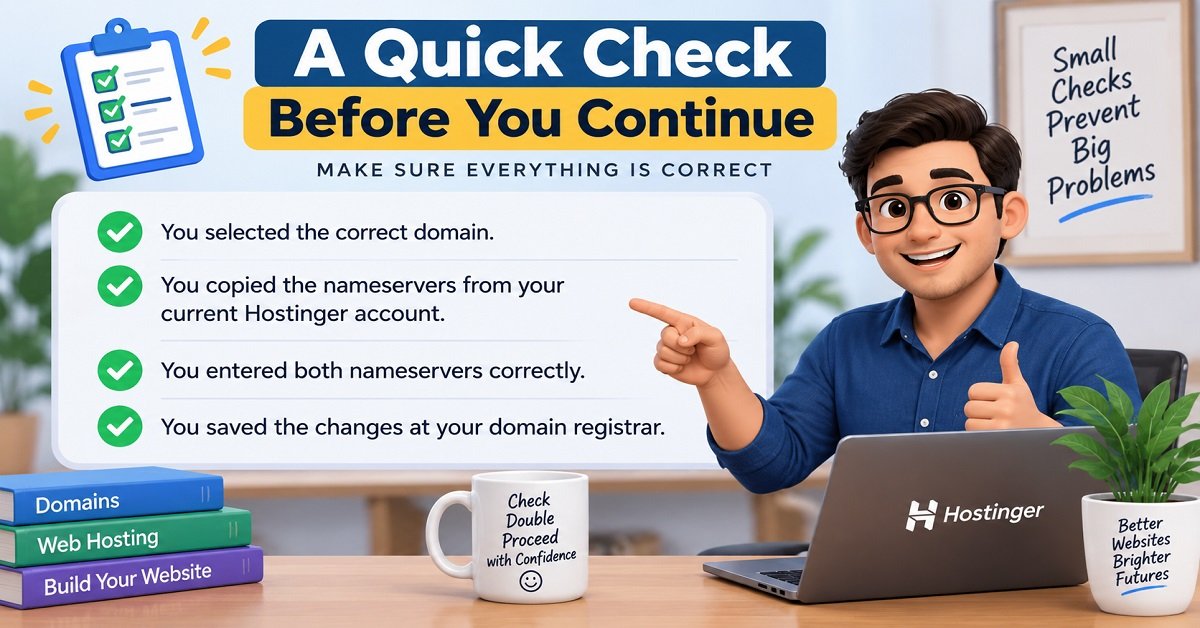
Before moving on, verify these four things:
- You selected the correct domain.
- You copied the nameservers from your current Hostinger account.
- You entered both nameservers correctly.
- You saved the changes at your domain registrar.
If all four are correct, you have completed the most important DNS configuration step.
The next stage is to make sure the domain is properly added to your Hostinger website and then verify that everything is working.
That verification step is important because changing nameservers alone does not mean your website is ready.
Step 6: Add Your Domain to Hostinger
After updating the nameservers at your domain registrar, return to your Hostinger account.
If you haven’t already added the domain to your hosting plan, you need to do that before building the website.
From the Hostinger dashboard, look for the option to add a new website or domain. The wording can vary depending on your Hostinger plan and the current version of hPanel.
Enter the domain name you want to use.
For example:
myexample.com
Make sure you enter the domain correctly.
You don’t normally need to add:
https://
or
www.
unless Hostinger specifically asks for a complete website address.
Why does the domain need to be added?
Think about the process this way:
Your domain registrar tells the internet:
“This domain uses Hostinger’s DNS.”
Hostinger then needs to know:
“This particular domain should be connected to this website on my hosting account.”
Both sides need to be configured correctly.
If the nameservers are correct but the domain hasn’t been properly added to the appropriate Hostinger website, you may still have problems accessing your site.
Step 7: Choose What You Want to Do With the Domain
Depending on your Hostinger plan and account setup, Hostinger may ask what you want to do with the domain.
You might be creating:
- A brand-new website
- A WordPress website
- An additional website on an existing hosting plan
- A website that already has files
- A domain that will point to an existing website
Choose the option that matches your situation.
If you’re creating a completely new WordPress website, follow the WordPress setup option provided by Hostinger.
If you already have a website and are migrating it to Hostinger, be careful not to overwrite existing files or databases.
For beginners starting from scratch, the simplest route is generally to add the domain and then install WordPress.
If you’re completely new to WordPress, you can follow our guide How to Install WordPress after the domain connection is complete.
Step 8: Wait for DNS Propagation
This is the part that often causes confusion.
After changing your nameservers, the change may not appear everywhere immediately.
This process is called DNS propagation.
What is DNS propagation?
DNS information is stored and cached by servers around the internet.
When you change your domain’s nameservers, different networks need to update their information.
As a result, one person might see the new Hostinger website while another person temporarily sees the old website or an error page.
This doesn’t necessarily mean something is wrong.
How long does DNS propagation take?
It can vary.
You may see the change relatively quickly, while in other cases it can take longer.
There is no need to repeatedly change your nameservers during this period.
In fact, repeatedly changing DNS settings can make troubleshooting more difficult.
A better approach is:
- Make the correct DNS change once.
- Confirm that you saved it.
- Give DNS time to update.
- Check the domain periodically.
Why Does My Domain Work on One Device but Not Another?
This can happen during DNS propagation.
For example, suppose you change your nameservers at 10:00 AM.
You check the domain on your laptop and it displays the Hostinger website.
Then you check it on your phone and see an old page or an error.
You might assume that the connection failed.
But the two devices may be using different DNS resolvers or cached information.
So don’t immediately change the DNS settings again.
Give the change some time.
You can also try:
- Opening the website in a private/incognito window
- Trying another internet connection
- Restarting your browser
- Clearing local DNS cache if necessary
Step 9: Verify Your Domain in Hostinger
Once enough time has passed, return to your Hostinger dashboard.
Check the domain or website status.
Hostinger should eventually recognize that the domain is correctly pointing to its infrastructure.
If Hostinger provides a verification or connection status, use that as one of your checks.
You should also test the domain yourself.
Open a browser and enter:
If your website loads correctly, that’s a good sign.
Also try:
Depending on your configuration, both versions should normally lead to the same website.
Step 10: Check Your Website Without HTTPS
If your website doesn’t load with HTTPS yet, try the HTTP version temporarily:
http://yourdomain.com
If the HTTP version works but HTTPS doesn’t, the domain connection itself may be fine.
The problem could simply be that the SSL certificate hasn’t been issued or configured yet.
Don’t leave your website using HTTP permanently.
For a modern website, HTTPS is important for security and visitor trust.
Step 11: Enable Your SSL Certificate
Once your domain is correctly connected, check the SSL section inside your Hostinger account.
Hostinger commonly provides SSL certificates with eligible hosting plans.
SSL enables HTTPS.
Without SSL, a browser may display a warning or show your website as insecure.
With SSL correctly configured, visitors should be able to access your website through:
instead of:
http://yourdomain.com
Why is HTTPS important?
HTTPS encrypts the connection between the visitor’s browser and your website.
It is especially important if your website handles:
- Login information
- Contact forms
- Customer information
- Payments
- Other private data
Even for a simple blog, HTTPS is now the normal standard.
It also prevents visitors from seeing an avoidable browser security warning.
Step 12: Make Sure WordPress Uses HTTPS
If you’re using WordPress, don’t stop after confirming that the SSL certificate is active.
Your WordPress website should also use the HTTPS version of your domain.
For example:
rather than:
http://example.com
You can check this under your WordPress settings.
Go to:
Settings → General
Look at:
WordPress Address (URL)
and:
Site Address (URL)
Both should normally use your HTTPS domain after SSL has been configured.
Don’t change these settings unnecessarily while the domain is still being connected.
If you change them before HTTPS is ready, you could temporarily make your website difficult to access.
Step 13: Check the www and Non-www Versions
There are two common ways people enter a website:
example.com
and
www.example.com
These are technically different hostnames, although they can point to the same website.
A properly configured website should normally handle both versions.
For example:
Non-www:
www:
One version should be your preferred version, while the other should redirect to it.
You don’t need to worry about which one is better for SEO. The important thing is to configure your website consistently.
How to Connect a GoDaddy Domain to Hostinger
Let’s look at a practical example.
Imagine you purchased your domain from GoDaddy but purchased hosting from Hostinger.
Your setup looks like this:
| Service | Provider |
|---|---|
| Domain | GoDaddy |
| Hosting | Hostinger |
| Website | WordPress |
| DNS | Hostinger |
You don’t need to transfer the domain from GoDaddy.
Instead, you need to point the domain toward Hostinger.
Step 1: Get Hostinger’s nameservers
Log in to Hostinger and find the nameserver information provided for your hosting account.
Copy the nameservers exactly as shown there.
Step 2: Log in to GoDaddy
Sign in to your GoDaddy account.
Open your domain list and select the domain you want to connect.
Find the domain’s nameserver settings.
GoDaddy’s interface can change, so the location or wording of the option may look different from older tutorials.
The important thing is to find the nameserver management area for your domain.
Step 3: Replace the nameservers
If you’re using Hostinger’s nameserver method, replace GoDaddy’s existing nameservers with the Hostinger nameservers shown in your Hostinger account.
Save the changes.
That’s the main DNS change.
Step 4: Return to Hostinger
Go back to Hostinger and make sure the domain has been added to the correct website or hosting plan.
Hostinger may take some time to recognize the DNS changes.
Step 5: Wait and test
Give the DNS changes time to propagate.
Then open your domain in a browser.
If everything is configured correctly, your website should eventually load from Hostinger.
Important GoDaddy warning
If you already have email or other services connected to your GoDaddy domain, don’t simply replace the nameservers without checking your DNS records first.
For example, you might have:
MX records for email
TXT records for verification
CNAME records for other services
Changing nameservers can change which DNS provider controls those records.
This is why a brand-new domain is much easier to connect than an established domain that already has several services attached to it.
What If Your Domain Is Registered With Namecheap?
The basic concept is the same.
You don’t need to transfer your domain.
You can keep:
Domain registration → Namecheap
and use:
Web hosting → Hostinger
You simply need to configure the domain’s nameservers or DNS records correctly.
The exact buttons and menu names may differ from GoDaddy, but the underlying process is the same.
The general flow is:
Hostinger → Get DNS information → Domain registrar → Update nameservers → Wait for propagation → Verify website
This is why understanding the concept is more useful than memorizing the exact location of a button.
What If Your Domain Is Using Cloudflare?
Cloudflare adds another layer to the setup.
For example, your configuration might look like:
Domain registrar → GoDaddy
DNS → Cloudflare
Hosting → Hostinger
In this situation, you may not want to replace your Cloudflare nameservers with Hostinger’s nameservers.
Instead, you can keep Cloudflare as your DNS provider and configure the appropriate DNS records to point to Hostinger.
This approach can be useful if you’re already using Cloudflare for services such as DNS management, caching, security, or other features.
However, it requires a little more understanding of DNS.
If you are a complete beginner and don’t need Cloudflare’s DNS features, using Hostinger’s DNS management may be simpler.
Nameservers vs A Record: Which One Should You Choose?
This is one of the most important decisions when connecting a domain.
Here’s the simple comparison:
| Feature | Hostinger Nameservers | DNS/A Record |
|---|---|---|
| Easy for beginners | Yes | Moderate |
| DNS managed by | Hostinger | Existing DNS provider |
| Good for a new website | Yes | Yes |
| Useful with Cloudflare | Usually not necessary | Yes |
| More control over existing DNS | Less convenient | Better |
| Requires understanding DNS | Very little | More |
| Can affect existing DNS services | Yes | Depends on records |
Choose Hostinger nameservers if:
You have a new domain.
You don’t have existing email services.
You want Hostinger to manage your DNS.
You want the simplest setup.
Consider DNS records if:
Your domain already has important DNS records.
You use Cloudflare.
You use Google Workspace or Microsoft 365.
You need to keep another DNS provider.
You understand how A, CNAME, MX and TXT records work.
Don’t Forget Existing Email Records
Let’s say you have already connected your domain to Google Workspace.
Your domain might have MX records that look something like this:
| Record | Purpose |
|---|---|
| MX | Directs incoming email |
| A | Points a domain or hostname to an IP address |
| CNAME | Creates an alias for another hostname |
| TXT | Stores verification and other text information |
If you change the nameservers, those DNS records may no longer be served by your previous DNS provider.
That can cause unexpected problems.
For example, your website may work perfectly while your business email suddenly stops receiving messages.
That’s why you should always ask yourself:
“Is this domain already being used for anything other than my website?”
If the answer is yes, check the DNS configuration before changing nameservers.
A Simple Example of a Safe Setup
Imagine you purchased:
mynewblog.com
You have:
- No email
- No existing website
- No Cloudflare
- No other services connected to the domain
You purchased hosting from Hostinger.
This is an ideal situation for using Hostinger’s nameservers.
Your setup can be:
Domain registrar → Domain registration
Hostinger → Nameservers + Hosting
WordPress → Website
The process is relatively simple because there are no existing DNS services that you need to preserve.
A Different Example: Existing Business Website
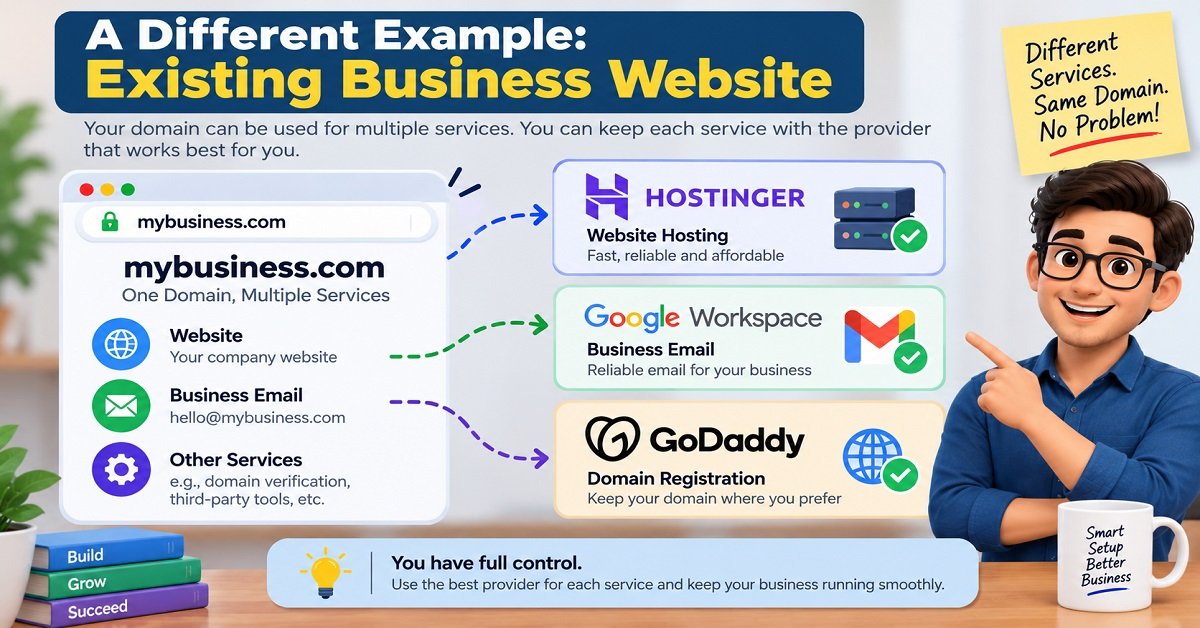
Now imagine:
mybusiness.com
is already being used for:
- Company website
- Google Workspace email
- Email forwarding
- Domain verification
- Other third-party services
You want to move only the website to Hostinger.
In this case, you should not blindly replace the nameservers.
Instead, carefully review your current DNS records and determine which records need to point to Hostinger while keeping the other services working.
This setup takes more care, but it allows you to move the website without unnecessarily disrupting other services.
How to Know Your Domain Is Fully Connected
Don’t consider the job finished just because you changed the nameservers.
Use this simple checklist:
| Check | Expected result |
|---|---|
| Domain added to Hostinger | Yes |
| Nameservers updated | Yes |
| DNS propagation completed | Yes |
| Domain opens in browser | Yes |
| HTTPS works | Yes |
| SSL certificate active | Yes |
| www version works | Yes |
| Non-www version works | Yes |
| Preferred URL redirects correctly | Yes |
| WordPress loads correctly | Yes |
If all of these are working, your domain-to-Hostinger connection is in good shape.
What Should You Do After Connecting the Domain?
Once your domain is working, you can move on to building and configuring your website.
If you’re starting a WordPress website from scratch, the next logical steps include:
- Install WordPress.
- Configure your WordPress settings.
- Choose a suitable theme.
- Create important pages.
- Configure basic security.
- Set up backups.
- Improve website performance.
- Connect Google Search Console.
- Start publishing useful content.
If you haven’t created your website yet, our detailed guide How to Build a WordPress Website from Scratch can walk you through the process from the beginning.
You should also understand the basic cost involved before committing to different tools and services. Our article How Much Does It Cost to Start a Blog? can help you plan your budget.
What Happens If the Website Still Doesn’t Work?
Don’t immediately assume that you entered the wrong nameservers.
There are several possible reasons your website might not be working yet.
The most common ones are:
- DNS propagation is still in progress.
- The nameservers were entered incorrectly.
- The domain was added to the wrong Hostinger website.
- The domain has expired.
- The DNS records are incorrect.
- SSL hasn’t been issued yet.
- Cloudflare is using an incorrect DNS configuration.
- Your browser or DNS resolver is using cached information.
The good news is that most of these problems are relatively easy to diagnose once you know where to look.
What to Do If Your Domain Is Not Connecting to Hostinger
You followed the instructions, changed the nameservers, waited for some time, and your website still isn’t opening.
Don’t worry.
There are several possible reasons, and most of them are easy to check.
The best approach is to troubleshoot the problem one step at a time instead of changing multiple DNS settings randomly.
1. Check the Nameservers Again
Start with the simplest possibility.
Log in to your domain registrar and check which nameservers are currently configured.
Compare them with the nameservers shown in your Hostinger account.
Make sure:
- You selected the correct domain.
- Both nameservers are entered.
- There are no typing mistakes.
- You didn’t accidentally leave one old nameserver.
- You saved the changes.
If even one nameserver is incorrect, the domain may not work as expected.
Important: Don’t copy nameserver values from an old tutorial. Hostinger can change its infrastructure, so always use the values currently displayed in your own Hostinger account.
2. Make Sure the Domain Has Not Expired
A surprisingly simple issue can sometimes be the cause.
Log in to your domain registrar and check the domain’s status.
Make sure the domain is:
Active
and not:
Expired
If a domain expires, its DNS configuration and website availability can be affected.
This is particularly worth checking if you haven’t logged into your domain registrar for a long time.
3. Check Whether the Domain Is Added to the Correct Hostinger Website
If you have multiple websites under your Hostinger account, make sure the domain is connected to the correct website.
For example, suppose you have:
exampleone.comexampletwo.comexamplethree.com
inside the same hosting account.
You don’t want to accidentally configure exampletwo.com while expecting exampleone.com to open your new website.
Go through the domain and website settings carefully.
4. Don’t Keep Changing the Nameservers During Propagation
This is one of the most common mistakes beginners make.
They change the nameservers and then check the website five minutes later.
It doesn’t work.
So they change the nameservers again.
Then they wait another few minutes and change them again.
This can make the situation more confusing.
If you have confirmed that the nameservers are correct, leave them alone and allow DNS changes to propagate.
Think of it like updating your address with multiple delivery services. The information doesn’t instantly reach every system around the world.
5. Clear Your Browser Cache
Sometimes your computer is simply showing an older version of the website.
Try opening your domain in a private or incognito browser window.
For example:
Chrome → New Incognito Window
Then enter your domain.
You can also try another browser.
If the website works in another browser but not your normal browser, the problem may be local browser caching rather than your Hostinger configuration.
6. Try a Different Internet Connection
Your internet service provider may be using a DNS resolver that still has older information.
Try opening your website using:
- Mobile data
- Another Wi-Fi network
- A different device
For example, if the website doesn’t open on your home broadband connection, switch your phone to mobile data and try again.
If it works there, DNS propagation or caching may be the reason.
This is one reason why asking a friend to check your new domain can sometimes be useful.
7. Check Your DNS Records
If you’re not using Hostinger’s nameservers and instead keeping another DNS provider, check your DNS records carefully.
For a typical website, the domain needs to point toward the correct hosting destination.
Depending on your setup, this can involve records such as:
- A record
- CNAME record
- MX record
- TXT record
Don’t randomly modify these records.
Each has a different purpose.
What does an A record do?
An A record generally connects a hostname to an IPv4 address.
For example, your root domain might use an A record to point toward your hosting server.
What does a CNAME record do?
A CNAME creates an alias from one hostname to another hostname.
The www version of a website commonly uses a CNAME in some DNS configurations.
What does an MX record do?
MX records are related to email delivery.
They tell email systems where messages for your domain should be delivered.
What does a TXT record do?
TXT records can be used for various purposes, including domain verification and email-related configurations.
This is why you shouldn’t delete DNS records simply because you don’t recognize them.
Some records may be needed by services you use.
8. Your SSL Certificate May Not Be Ready Yet
Suppose you enter:
and receive a security warning.
The domain itself may already be pointing correctly to Hostinger.
The problem could be SSL.
Check your Hostinger account to see whether an SSL certificate has been issued and enabled for the domain.
Once SSL is active, your website should be accessible securely through HTTPS.
If your website works with HTTP but HTTPS isn’t working, give the SSL setup some time and check the configuration again.
9. Check for Mixed HTTP and HTTPS Content
Sometimes the website loads over HTTPS, but your browser still displays warnings or some resources don’t load properly.
This can happen when a website contains resources such as images, scripts, or stylesheets that are still being requested using HTTP.
This is called mixed content.
For a WordPress website, make sure your website URLs use HTTPS after your SSL certificate is active.
Your goal should be something like:
rather than:
http://example.com
If you’re using WordPress, plugins can also sometimes contain old HTTP references.
Don’t panic if you see this after moving a website. It can usually be fixed once you identify the affected resources.
10. Check Your Cloudflare Settings
Cloudflare can make domain troubleshooting slightly more complicated because Cloudflare may be handling your DNS.
For example:
Domain registrar → Cloudflare → Hostinger
In this configuration, your domain’s nameservers normally point to Cloudflare, not directly to Hostinger.
Cloudflare then controls the DNS records that point your domain toward your Hostinger server.
If you’re using Cloudflare, don’t automatically replace your Cloudflare nameservers with Hostinger’s nameservers.
Instead, check your Cloudflare DNS records and make sure they point to the correct Hostinger destination.
Also check whether Cloudflare’s proxy settings are appropriate for your setup.
If you don’t understand the Cloudflare configuration, it’s better to make one change at a time and test the website rather than changing several settings together.
11. Check Whether Your Domain Is Actually Pointing to Hostinger
If you’re unsure whether the DNS change worked, you can use a public DNS lookup service to check your domain.
A DNS lookup can show information such as:
- Nameservers
- A records
- CNAME records
- MX records
- Other DNS information
This can help you determine whether the internet is seeing the changes you made.
You don’t need to understand every result.
For example, if you changed the nameservers to Hostinger but a lookup still shows your old nameservers, the change may not have propagated yet or the update may not have been saved correctly.
12. Check Your Domain From Multiple Locations
DNS propagation doesn’t necessarily happen everywhere at exactly the same time.
That’s why checking your domain from different locations can be useful.
You might see:
Location A: New Hostinger website
Location B: Old website
Location C: DNS error
This can happen while DNS information is being updated.
If your nameservers are correct and the change is still relatively recent, waiting may be the correct solution.
Common DNS Errors You May See
You may encounter different messages while your domain is being configured.
Here’s what some common situations can mean:
| Error or symptom | Possible reason |
|---|---|
| Website doesn’t open | DNS not propagated or incorrect configuration |
| Old website appears | Cached DNS information |
| “This site can’t be reached” | DNS or server configuration issue |
| HTTPS warning | SSL not ready or configured correctly |
| Hostinger default page appears | Domain is reaching Hostinger but website setup may not be complete |
| Website works without www but not with www | www DNS configuration issue |
| Email stopped working | MX/DNS configuration problem |
| Cloudflare error | Cloudflare DNS or proxy configuration issue |
These are possible causes, not guaranteed diagnoses.
The important thing is to identify exactly which symptom you’re seeing before changing anything.
What If Hostinger Shows a DNS Error?
If Hostinger says your domain isn’t pointing correctly, compare the DNS information shown in Hostinger with what you configured at your registrar.
Start with the nameservers.
If you are using Hostinger nameservers, confirm that the domain registrar is actually using them.
If you’re using Cloudflare or another DNS provider, check the relevant DNS records instead.
Avoid changing both nameservers and DNS records at the same time unless you understand why you’re doing it.
Otherwise, you may fix one problem while creating another.
What If the Domain Shows a Hostinger Default Page?
This can actually be a useful clue.
It may mean that your domain is reaching Hostinger successfully, but your website isn’t configured exactly as expected.
Possible reasons include:
- The domain was recently connected.
- WordPress hasn’t been installed.
- The domain is connected to the wrong website.
- Website files haven’t been uploaded.
- The domain’s document root isn’t configured correctly.
- A new hosting account is still being configured.
So don’t immediately change your nameservers again.
First check your Hostinger website configuration.
What If You See the Old Website?
Suppose you moved your website from another hosting provider to Hostinger.
After changing the DNS settings, you still see the old website.
This doesn’t necessarily mean the migration failed.
Your DNS resolver may still have the previous information cached.
If you’re migrating an existing website, you should also make sure the website files and database were successfully transferred to Hostinger.
If you only changed the nameservers but didn’t migrate the actual website, Hostinger won’t magically copy your old website.
This is an important distinction:
Connecting the domain does not migrate your website.
It only tells the domain where the website should be served from.
Connecting a Domain Does Not Transfer Website Files
Imagine your old website is hosted on another server.
You change the domain’s nameservers to Hostinger.
Now the domain points toward Hostinger.
But your old website files are still sitting on the old hosting server.
If you haven’t migrated those files and the database, your new Hostinger account won’t contain the old website.
For a new website, this isn’t a problem.
For an existing website, you need to complete the migration separately.
What Happens to Your Email After Connecting the Domain?
This deserves special attention.
Suppose your domain is:
example.com
and you use:
hello@example.com
for business email.
Your email service depends on DNS records, particularly MX records.
If you change nameservers, you may change where those DNS records are managed.
Therefore, before changing nameservers on an established domain, make a note of your existing email-related DNS records.
Depending on your email provider, you may need to recreate the required records at the new DNS provider.
Website and email can use different services
You can have:
Domain: GoDaddy
Website hosting: Hostinger
Email: Google Workspace
There is no requirement for all three services to come from the same company.
That’s one of the useful things about DNS.
You can direct different services to different providers.
The important part is configuring the records correctly.
What About Subdomains?
Once you understand how a domain works, you can also create subdomains.
For example:
blog.example.com
shop.example.com
support.example.com
A subdomain can be configured separately from your main domain.
However, don’t create subdomains unless you have a reason to use them.
For a simple beginner blog, your main domain is usually enough.
Should You Use www or Non-www?
There is no need to obsess over this choice.
Both can work:
example.com
and:
www.example.com
Choose one as your preferred website address and configure the other to redirect to it.
For example:
Preferred: https://example.com
Redirect: https://www.example.com
Or you can use the www version as your preferred address.
The important thing is consistency.
Domain Connection Checklist
Before you consider the setup complete, go through this checklist.
| Task | Status |
|---|---|
| Domain is active | Check |
| Hostinger hosting is active | Check |
| Domain added to Hostinger | Check |
| Correct nameservers configured | Check |
| DNS propagation completed | Check |
| Domain opens in browser | Check |
| HTTPS works | Check |
| SSL certificate is active | Check |
| www version checked | Check |
| Non-www version checked | Check |
| Existing email tested | Check |
| WordPress loads correctly | Check |
If you’re setting up a completely new blog, you can now move on to the actual website-building process.
Our guide How to Start a Blog in 2026 can help you understand the bigger picture if you’re building a blog for the first time.
Common Mistakes to Avoid
Mistake 1: Copying old Hostinger nameservers
Don’t rely on nameservers found in an old article, forum post, or video.
Use the values displayed in your current Hostinger account.
Mistake 2: Changing nameservers repeatedly
If you have entered the correct information, give DNS time to propagate.
Mistake 3: Ignoring email
If the domain already has email, check the DNS records before making changes.
Mistake 4: Assuming domain connection means WordPress is installed
Connecting a domain doesn’t automatically create your website.
You still need to install WordPress or upload your website.
Mistake 5: Forgetting SSL
Your website should use HTTPS.
Check that SSL is active after connecting the domain.
Mistake 6: Changing several DNS settings at once
If something goes wrong, you won’t know which change caused the problem.
Make one change, test it, and then move to the next.
What Should You Do After Connecting Your Domain?
Once your domain successfully opens your Hostinger website, the technical connection is largely complete.
Now you can concentrate on building the actual website.
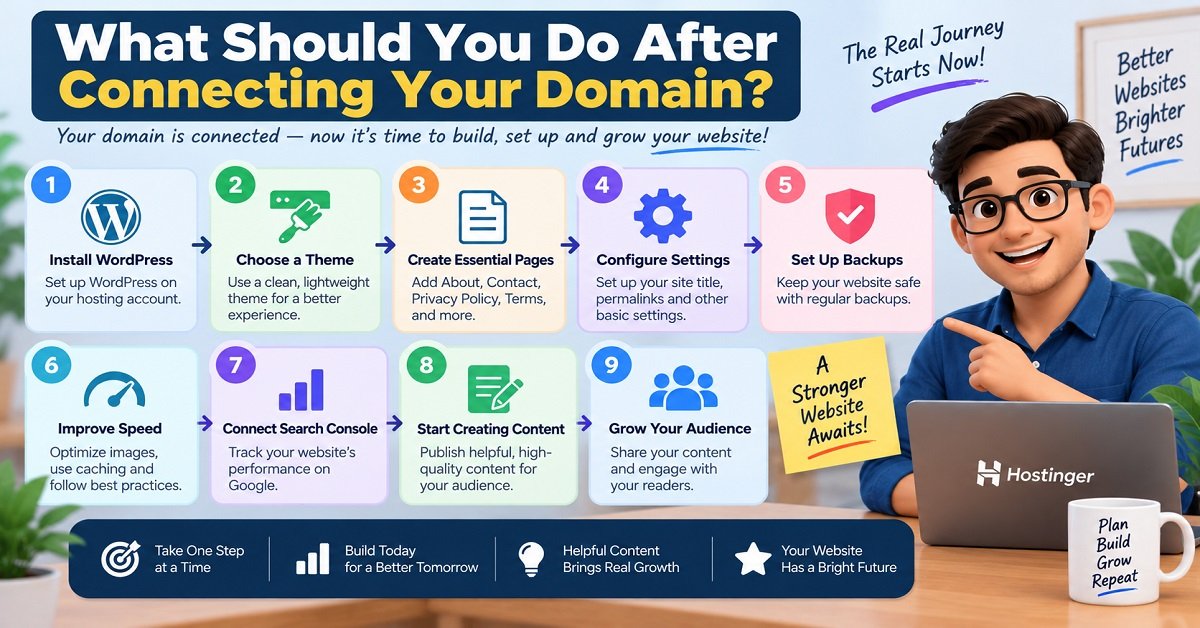
If you are using WordPress, your next steps could include:
- Install WordPress.
- Choose a lightweight theme.
- Configure your website name and basic settings.
- Create important pages.
- Set up navigation.
- Configure backups.
- Improve website performance.
- Install only the plugins you actually need.
- Connect Google Search Console.
- Start publishing useful content.
If you’re interested in improving your website’s performance after the initial setup, our guide How to Make Your Website Load Faster is a useful next step.
You can also use our Website Tools for Bloggers guide to find tools that can help with SEO, content creation, performance, and website management.
A Simple Way to Remember the Whole Process
If all of this sounds complicated, remember this simple flow:
Buy domain → Get Hostinger hosting → Add domain to Hostinger → Find Hostinger DNS information → Update domain DNS/nameservers → Wait for propagation → Verify domain → Enable SSL → Install/configure WordPress → Build your website
That’s essentially the complete journey.
The confusing part is usually DNS.
Once you understand that DNS is simply the system that tells the internet where your domain should go, the process becomes much easier to understand.
Pros and Cons of Connecting a Domain to Hostinger
Frequently Asked Questions About Connecting a Domain to Hostinger
Can I connect a domain purchased from another company to Hostinger?
Yes. You don’t have to purchase your domain and hosting from the same company.
For example, you can register your domain with GoDaddy and purchase hosting from Hostinger. You can then point the domain toward Hostinger by changing the nameservers or configuring the required DNS records.
This is a very common setup.
Do I need to transfer my domain to Hostinger?
No.
Transferring your domain and connecting your domain are two different things.
You can keep your domain registered with your current registrar and simply point it to Hostinger.
A transfer is only necessary if you specifically want to move the domain registration to Hostinger.
How long does it take to connect a domain to Hostinger?
The actual DNS change can be completed within a few minutes, but the change may take longer to propagate across the internet.
Sometimes the website starts working quickly. In other cases, you may need to wait while different DNS resolvers update their information.
If you’ve entered the correct settings, avoid repeatedly changing them while waiting for propagation.
Why is my domain still showing the old website?
If you recently changed your DNS settings, your DNS resolver may still have cached information from the previous configuration.
This can happen during DNS propagation.
If the old website continues to appear after sufficient time, check that your nameservers or DNS records are correct and that the website has actually been set up on Hostinger.
Remember that changing the domain’s DNS does not move your website files.
If you migrated from another hosting provider, the website itself must also be migrated.
Will changing nameservers affect my email?
It can.
If your domain already has email configured, changing nameservers can change where your DNS records are managed.
Email services commonly rely on MX records, so you should check your existing DNS configuration before changing nameservers.
If the domain is brand new and you haven’t created any email service, this is generally much less of a concern.
Can I use Google Workspace email with Hostinger hosting?
Yes.
Your website and email don’t have to be hosted by the same company.
For example, you can have:
Domain: GoDaddy
Website: Hostinger
Email: Google Workspace
The important thing is to configure the DNS records correctly so that your website points to Hostinger while the email-related records continue pointing to your email provider.
Can I use Cloudflare with Hostinger?
Yes.
Cloudflare and Hostinger can be used together.
However, Cloudflare can act as the DNS provider, so your configuration is different from a basic Hostinger nameserver setup.
If your domain already uses Cloudflare, don’t automatically replace the Cloudflare nameservers with Hostinger’s nameservers.
Instead, configure the necessary DNS records in Cloudflare to point toward your Hostinger website.
What happens if I enter the wrong nameservers?
Your domain may stop reaching the correct website.
Depending on the error, visitors might see a DNS error, an old website, a default page, or another unexpected result.
The good news is that you can normally correct the problem by restoring the correct nameserver configuration.
Always copy the current nameserver values from your Hostinger account rather than relying on values from an old tutorial.
Do I need SSL after connecting my domain?
Yes, you should use HTTPS for your website.
After your domain is correctly connected, check your Hostinger account to make sure SSL is active for the domain.
Once configured, your website should use an address beginning with:https://
rather than:http://
Can I connect multiple domains to one Hostinger account?
Depending on your Hostinger plan, you may be able to host multiple websites.
The exact number and available features depend on your current hosting plan.
If you’re planning to build multiple websites, check the limits and features of your specific Hostinger plan before purchasing additional domains or hosting.
Can I connect a domain without changing nameservers?
Yes.
Changing nameservers is not the only way to connect a domain.
You can also keep your current DNS provider and configure DNS records, such as an A record, to point the domain toward your Hostinger hosting.
This can be particularly useful when you already use Cloudflare or another DNS provider and don’t want to move your DNS management.
Why does my domain work without www but not with www?
This usually means the DNS configuration for the www hostname isn’t correct or hasn’t propagated yet.
Check the DNS configuration for both the root domain and the www hostname.
Your website should be configured so that visitors can consistently reach the same website regardless of which version they enter.
Why does my website show a security warning after connecting the domain?
A security warning can occur if SSL hasn’t been issued or configured correctly.
First, check the SSL status in your Hostinger account.
If you recently connected the domain, the SSL certificate may still be in the process of being issued.
Also make sure your WordPress website is configured to use HTTPS after SSL is active.
Final Troubleshooting Checklist
If your domain isn’t working, don’t start changing random settings.
Use this checklist in order.
Domain checklist
- Is the domain active?
- Is the domain registered with the company you think it is?
- Did you select the correct domain?
- Is your Hostinger hosting plan active?
- Has the domain been added to the correct Hostinger website?
DNS checklist
- Are the nameservers correct?
- Did you copy the nameservers directly from Hostinger?
- Did you save the changes at your registrar?
- Are you using Cloudflare or another DNS provider?
- Are there existing DNS records that need to be preserved?
- Is DNS propagation still in progress?
Website checklist
- Is WordPress installed?
- Are the website files present?
- Is the domain connected to the correct website?
- Does the domain work without
www? - Does the
wwwversion work? - Is HTTPS working?
- Is SSL active?
Email checklist
If you already use domain email:
- Are the MX records still correct?
- Is your email provider still configured?
- Can you send an email?
- Can you receive an email?
Checking these items systematically is much safer than repeatedly changing DNS settings.
What to Do After Your Domain Is Connected to Hostinger
Connecting your domain is only the beginning.
If you’re creating a new blog or business website, there are several important things you should do before publishing content.
1. Install WordPress
If WordPress isn’t installed yet, install it through your Hostinger account.
WordPress gives you the tools needed to create pages, publish articles, install themes, and manage your website without having to build everything from scratch.
If you’re new to WordPress, follow How to Install WordPress before moving further.
2. Choose a Suitable Theme
Your theme controls much of the visual appearance of your WordPress website.
Don’t choose a theme simply because it contains lots of animations and design effects.
For most blogs, a lightweight theme with clean typography, good mobile compatibility, and sensible customization options is a better choice.
Your visitors should be able to find and read your content easily.
3. Create the Essential Pages
Before publishing lots of articles, create the basic pages your website needs.
Depending on the type of website, these may include:
- About
- Contact
- Privacy Policy
- Terms and Conditions
- Affiliate Disclosure
These pages help visitors understand who is behind the website and how it operates.
They can also be important for websites that use affiliate links or advertising.
4. Set Up Your Website Navigation
Your navigation should make it easy for visitors to find your main categories and important pages.
Don’t put every page in your main menu.
Keep it simple.
For example, a blog could have:
Home | Tutorials | SEO | Blogging | Resources | About
The exact structure depends on your website.
5. Set Up Backups
Don’t wait until something goes wrong before thinking about backups.
Your website can contain valuable:
- Articles
- Images
- Settings
- Database information
- Customer or contact information
A backup gives you something to fall back on if an update, plugin problem, migration, or other issue damages your website.
6. Improve Website Speed
Once your website is working, test its performance.
A slow website can frustrate visitors, particularly on mobile connections.
Look at:
- Image sizes
- Unnecessary plugins
- Caching
- Server performance
- CSS and JavaScript
- Hosting configuration
For more practical tips, see How to Make Your Website Load Faster.
7. Connect Google Search Console
After your website is ready, connect it to Google Search Console.
This allows you to monitor how Google discovers and indexes your website and gives you useful information about search performance.
Don’t expect search traffic immediately after connecting your domain.
A new website needs time to be discovered, crawled, indexed, and eventually build search visibility.
8. Start Creating Useful Content
Once the technical setup is complete, your main focus should shift toward helping your readers.
If you’re building a blog, don’t publish articles simply to increase your post count.
Choose topics based on what your target readers actually want to know.
Our guide How to Choose a Blogging Niche That Makes Money can help if you’re still deciding what type of blog to build.
How the Complete Process Looks
At this point, let’s simplify everything into one picture.
Step 1: Purchase a domain.
Step 2: Purchase Hostinger hosting.
Step 3: Add your domain to Hostinger.
Step 4: Find the current Hostinger nameservers or DNS details.
Step 5: Log in to your domain registrar.
Step 6: Update the nameservers or DNS records.
Step 7: Save the changes.
Step 8: Wait for DNS propagation.
Step 9: Verify that the domain reaches your Hostinger website.
Step 10: Configure SSL and HTTPS.
Step 11: Install WordPress if necessary.
Step 12: Build and configure your website.
That’s the entire process in simple terms.
Final Thoughts
Connecting a domain to Hostinger can look complicated when you first see terms such as DNS, nameservers, A records, CNAME and MX records.
But you don’t need to become a DNS expert to connect a domain successfully.
For a new website with no existing email or other DNS services, the process is usually straightforward: add the domain to Hostinger, use the current nameserver information provided by Hostinger, update the nameservers at your registrar, and wait for the changes to propagate.
The situation becomes a little more complicated when the domain is already being used for email, Cloudflare, another website, or other online services. In those cases, take some time to understand your existing DNS configuration before making changes.
Most importantly, remember one thing:
Connecting your domain to Hostinger does not automatically move an existing website to Hostinger.
It only tells the internet where the domain should look for your website. If you’re moving an existing website, you also need to migrate its files and database.
Once the domain is working and HTTPS is active, you can move on to the more exciting part: actually building your website.
If you are starting from scratch, our guide How to Build a WordPress Website from Scratch is a natural next step.
And if you’re still learning how websites work, WordPress.com vs WordPress.org can help you understand the difference between the two WordPress options before you invest more time in your site.
Quick Takeaway
If you only remember the essentials from this guide, remember these five points:
- You don’t have to transfer your domain to Hostinger.
- You can keep your domain with GoDaddy, Namecheap, or another registrar.
- Use the current DNS or nameserver information provided by Hostinger.
- Be careful when changing DNS if your domain already has email or other services.
- Give DNS changes time to propagate before assuming something is broken.
Once these basics are clear, connecting a domain to Hostinger becomes much less intimidating.