
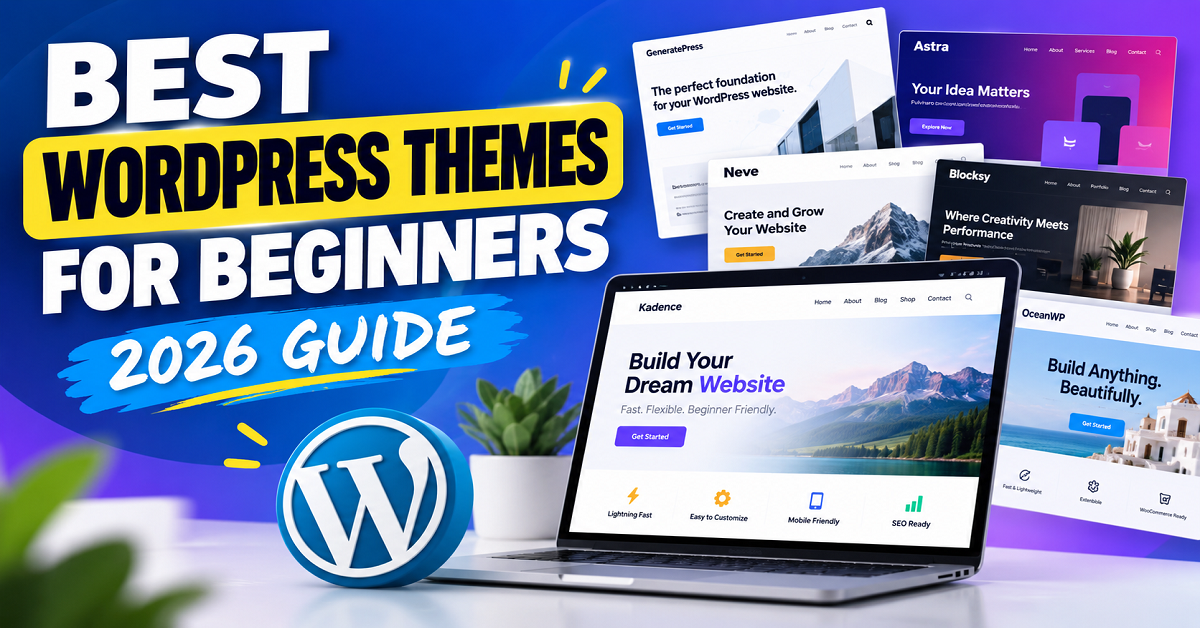
Choosing a WordPress theme can feel surprisingly difficult when you are building your first website. There are thousands of themes available, and almost every theme seems to promise a beautiful design, fast loading, easy customization, and professional features. But a beginner usually has a much simpler question: Which WordPress theme should I actually choose?
The good news is that you don’t need the most expensive theme or the one with the longest feature list. You need a theme that is easy to use, works well with WordPress, loads efficiently, looks good on mobile devices, and gives you enough flexibility to grow your website.
In this guide, we’ll look at the best WordPress themes for beginners in 2026, what makes a theme beginner-friendly, which themes are suitable for different types of websites, and what you should check before installing one.
By the end, you should have a much clearer idea of which type of WordPress theme is right for your website instead of simply choosing one because its demo looks attractive.
What Is a WordPress Theme?
Let’s start with the basics.
A WordPress theme controls the visual appearance and layout of your website.
Think of WordPress as the engine of your website and the theme as the design and structure built around that engine.
For example, your WordPress installation handles things such as:
- Your posts and pages
- Users
- Media files
- Comments
- Plugins
- Website settings
The theme controls things such as:
- Website layout
- Header
- Navigation menu
- Fonts
- Colors
- Blog post layout
- Sidebar
- Footer
- Buttons
- Spacing
- Overall visual style
So, if you install WordPress and then activate a different theme, your content can remain the same while the appearance of the website changes.
This is one reason choosing a theme carefully is important.
Theme vs Plugin: What Is the Difference?
Beginners often confuse themes and plugins because both can change the way a WordPress website works.
The easiest way to understand the difference is this:
| WordPress Theme | WordPress Plugin |
|---|---|
| Controls the design and layout | Adds functionality |
| Controls fonts and colors | Adds features |
| Controls header and footer | Can add forms, SEO, security, etc. |
| Controls blog layouts | Can add ecommerce functionality |
| Usually one active theme at a time | You can use multiple plugins |
For example, you might use GeneratePress to control the design of your website and a separate SEO plugin to manage your search engine optimization.
Similarly, you could use a theme for the overall appearance and WooCommerce for ecommerce functionality.
This separation is useful because you don’t want your entire website to depend on a theme for features that should really belong to plugins.
Why Choosing the Right WordPress Theme Matters
You may be wondering:
“Can’t I just choose a theme that looks good?”
You can, but that is not always a good idea.
A theme can look fantastic in its demo while being frustrating to use on a real website.
A demo website is usually carefully prepared by the theme developer. It may use optimized images, carefully selected fonts, specific plugins, and professionally designed content.
Your website will be different.
You might have 100 blog posts, large images, affiliate links, videos, tables, forms, advertisements, social sharing buttons, and several plugins.
That is why you should evaluate a theme based on more than appearance.
A good beginner-friendly theme should give you a balance between:
Design + Speed + Simplicity + Flexibility + Compatibility
You don’t necessarily need the theme with the most features.
In many cases, having fewer unnecessary features can actually make your website easier to manage.
What Should Beginners Look for in a WordPress Theme?
Before we get into the individual themes, let’s establish the criteria we’ll use.
This is important because otherwise a “best WordPress themes” article becomes little more than a list of popular names.
1. Easy Customization
The first thing a beginner should look for is how easy the theme is to customize.
You shouldn’t need to understand PHP, CSS, JavaScript, or website development just to change your logo or adjust the colors.
A good beginner theme should make common changes relatively simple.
For example, you may want to change:
- Logo
- Site title
- Colors
- Fonts
- Header
- Footer
- Menu
- Sidebar
- Blog layout
- Button styles
The exact customization interface differs between themes.
Some use the WordPress Customizer, while modern block themes can allow much more of the website to be edited through the Site Editor. WordPress describes block themes as themes where the block editor can be used to edit areas such as headers, footers and sidebars.
For a complete beginner, simplicity matters more than having hundreds of settings.
2. Good Performance
Website speed is another important consideration.
A theme is only one part of your website’s performance, but it can still affect how much code and resources your website needs to load.
This is particularly important for beginners because a website can become slow very quickly when you combine:
- A heavy theme
- Large images
- Too many plugins
- External fonts
- Tracking scripts
- Advertisements
- Page builders
- Videos
- Poor hosting
Some lightweight themes are designed to provide a relatively small foundation and allow you to add functionality as needed.
For example, GeneratePress describes its theme as lightweight and focused on speed, stability and accessibility. Its developer currently states that the base theme is designed around a small page footprint.
Astra also positions itself as a lightweight theme and provides performance-focused features such as optimized resources and locally hosted fonts.
However, don’t make the mistake of thinking:
“This theme claims to be fast, so my website will automatically be fast.”
That’s not how website performance works.
Your hosting, images, plugins, caching, fonts, scripts and content also matter.
A lightweight theme simply gives you a better starting point.
3. Mobile Responsiveness
Most people will not visit your website using the exact device you used to build it.
They may use:
- Android phones
- iPhones
- Tablets
- Laptops
- Desktop computers
Your theme should therefore adapt to different screen sizes.
This is called responsive design.
For example, a three-column layout on a desktop might become a single-column layout on a smartphone.
A menu that looks normal on a large screen may become a mobile menu.
Images should also fit within the available screen width.
Before choosing a theme, open its demo on your phone.
Don’t just look at the desktop version.
Ask yourself:
- Is the text easy to read?
- Is the menu easy to use?
- Are buttons large enough to tap?
- Does the layout look clean?
- Does anything appear cut off?
- Are images overflowing the screen?
These simple checks can reveal problems that you won’t notice on a desktop computer.
4. Compatibility With the WordPress Block Editor
WordPress has increasingly moved toward block-based editing.
The WordPress Block Editor allows you to build content using blocks such as:
- Paragraphs
- Headings
- Images
- Columns
- Buttons
- Lists
- Videos
- Tables
- Quotes
Modern themes can provide additional support and styling for these blocks.
WordPress also supports block themes that use the Site Editor to customize more areas of the website.
For beginners, good compatibility with the native WordPress editor can be a major advantage.
Why?
Because you may not need to install an additional page builder simply to create basic pages.
That can mean fewer plugins and a simpler website.
5. Regular Updates
WordPress itself changes over time.
Plugins are updated.
Browsers change.
Security requirements change.
Web standards evolve.
Your theme therefore shouldn’t be something you install once and completely forget about.
Look at the theme’s update history before installing it.
If a theme hasn’t been updated for a very long time, that’s a warning sign.
This doesn’t automatically mean that an old theme is unsafe, but it should make you investigate further.
If you choose a theme from the official WordPress Theme Directory, there is another useful advantage: themes submitted there go through a review process and must comply with the directory’s requirements.
That doesn’t mean every theme is perfect.
It simply gives beginners a safer starting point than downloading random theme ZIP files from unknown websites.
6. Plugin Compatibility
Your theme shouldn’t try to do everything.
You may eventually install plugins for:
- SEO
- Contact forms
- Security
- Caching
- Analytics
- Backup
- Ecommerce
- Affiliate management
- Email marketing
A good theme should work well alongside the plugins you actually need.
This is another reason to avoid themes that bundle an enormous number of unnecessary features.
Imagine choosing a theme because it provides its own page builder, sliders, forms, popup system, SEO settings and dozens of other features.
At first, that may sound convenient.
But later, you may find yourself tied closely to that theme.
If you change themes, some of those features may disappear.
A cleaner approach is often to let the theme handle the design and let dedicated plugins handle specific functionality.
7. Accessibility
Accessibility is something beginners often overlook.
A website should be usable by as many people as reasonably possible, including people who use screen readers or cannot use a mouse.
WordPress’s own theme documentation highlights accessibility as an important consideration when building themes.
You don’t need to become an accessibility expert before choosing a theme.
But you should look for basics such as:
- Readable text
- Good contrast
- Keyboard-friendly navigation
- Proper heading structure
- Clearly visible links
- Usable buttons
- Responsive design
A beautiful website isn’t particularly useful if some visitors struggle to read or navigate it.
8. Good Documentation and Support
Imagine that you’ve installed a theme and suddenly can’t figure out how to change the header.
What do you do?
This is where documentation matters.
A good theme should have useful instructions covering common tasks.
For premium themes, support can be another important benefit.
For free themes, documentation, community support and WordPress.org resources can be especially useful.
For a beginner, good documentation can save hours of frustration.
9. Starter Templates Can Be Helpful
Some themes provide pre-designed starter websites.
Instead of starting with a completely blank website, you can import a design and replace the demo content with your own.
This can save considerable time.
For example, GeneratePress currently provides a Site Library that allows users with the appropriate premium setup to start from professionally designed starter sites.
But there is one important warning.
Don’t import a starter website just because it looks beautiful.
First ask whether you actually need all of it.
Starter imports can add pages, images, menus and settings that you don’t need.
If you’re creating a simple blog, importing a huge business website with dozens of sections may create more work rather than less.
If you’re starting a completely new website, starter templates can be convenient.
If your website already contains important content, take a backup and understand what the import will change before proceeding.
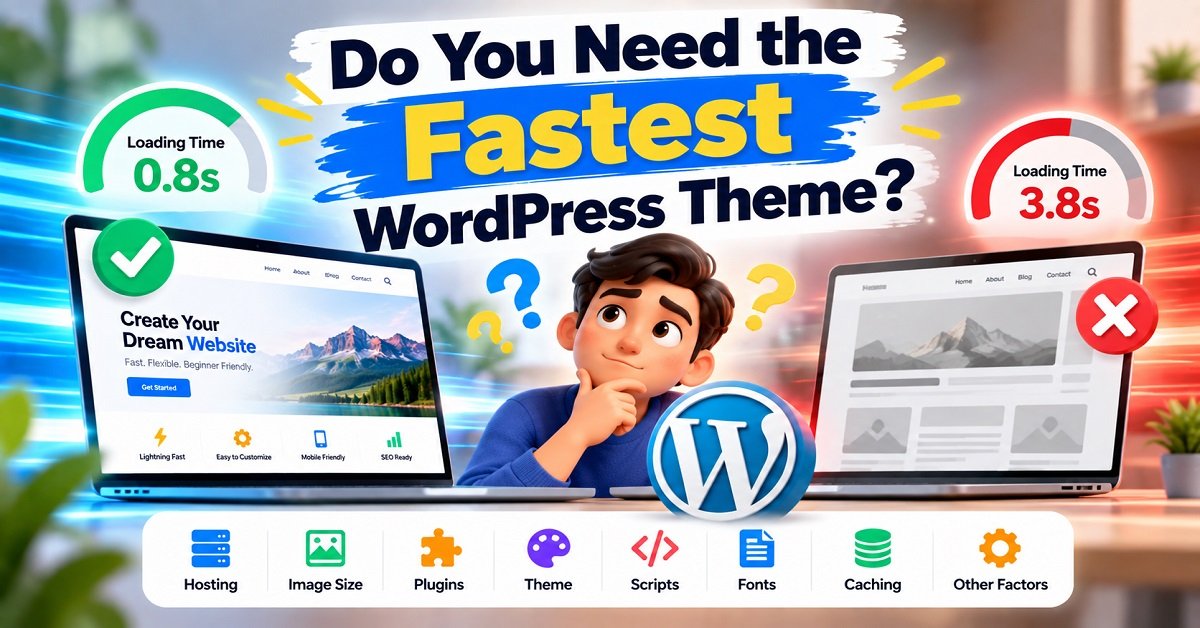
Do You Need the Fastest WordPress Theme?
This is one of the most common questions beginners ask.
The answer is slightly more complicated than it appears.
There is no single theme that will make every website the fastest.
A theme that performs well on one website may perform differently on another because the entire website setup is different.
For example:
Website A
- Lightweight theme
- Good hosting
- Optimized images
- Few plugins
- Caching enabled
Website B
- Same theme
- Cheap hosting
- Huge images
- 30 plugins
- Multiple tracking scripts
- Several third-party widgets
The second website can still be much slower.
Therefore, instead of obsessing over whether Theme A loads 50 milliseconds faster than Theme B in a particular test, beginners should focus on choosing a lightweight, well-maintained theme and then optimizing the entire website.
If you are new to website performance, our guide on How to Make Your Website Load Faster can help you understand the other factors that affect speed.
Free vs Premium WordPress Themes
Another decision you’ll face is whether to use a free or premium theme.
The word “premium” doesn’t automatically mean “better.”
A free theme can be perfectly suitable for a beginner website.
For example, if you’re starting a personal blog and only need:
- A homepage
- Blog posts
- Categories
- Navigation
- Basic customization
- A footer
you may not need to spend money on a theme at all.
Premium themes become more useful when you need additional customization, advanced layouts, starter sites, WooCommerce features, support or other features that aren’t available in the free version.
Here’s a simple way to think about it:
| Your situation | What you may need |
|---|---|
| Personal blog | Free theme may be enough |
| New beginner website | Free or lightweight premium theme |
| Affiliate blog | Lightweight theme with good blog controls |
| Business website | More customization may be useful |
| Online store | WooCommerce-compatible theme |
| Client websites | Advanced customization and support |
| Large content website | Performance and maintainability become more important |
Don’t buy a premium theme simply because the demo looks more impressive.
First determine what your website actually needs.
What About SEO?
A common question is:
“Which WordPress theme is best for SEO?”
There isn’t a magic theme that will make your website rank at the top of Google.
Your search performance depends on many factors, including:
- Content quality
- Search intent
- Keyword targeting
- Internal linking
- Website structure
- Page experience
- Backlinks and authority
- Technical SEO
- Website performance
- Competition
A theme can support good SEO practices, but it cannot replace them.
For example, a clean and responsive theme can give you a better foundation, but you still need useful content that actually answers what the reader searched for.
If you’re building a new WordPress website, you may also want to read our On-Page SEO Checklist before publishing your first batch of articles.
One Important Rule: Don’t Choose a Theme Before Choosing Your Website’s Purpose
This is probably the most useful advice in this entire guide.
Don’t start by asking:
“Which WordPress theme is the best?”
Start by asking:
“What am I building?”
For example:
If you’re building an affiliate blog, you may care more about:
- Fast loading
- Clean article layouts
- Tables
- Product boxes
- Good typography
- Mobile readability
- Advertisement placement
If you’re building a business website, you may care more about:
- Service pages
- Landing pages
- Testimonials
- Contact forms
- Calls to action
- Professional design
If you’re building an online store, you need:
- WooCommerce compatibility
- Product layouts
- Shopping cart support
- Checkout compatibility
- Product filtering
- Mobile-friendly shopping
The theme that works well for one situation may not be the right choice for another.
That is why this guide won’t simply tell you that one particular theme is “the best” for everyone.
Instead, we’ll compare the major beginner-friendly options and explain where each one makes sense.
A Quick Checklist Before You Install Any WordPress Theme
Before clicking the Install button, ask these questions:
| Question | Why it matters |
|---|---|
| Is the theme actively maintained? | Helps with compatibility and security |
| Is it responsive? | Your visitors use different screen sizes |
| Does it work with the WordPress editor? | Makes content creation easier |
| Is it lightweight? | Gives your website a better performance foundation |
| Does it have the customization options I need? | Prevents unnecessary theme switching |
| Is documentation available? | Helps when you get stuck |
| Does it work with my important plugins? | Avoids compatibility problems |
| Do I actually need its extra features? | Prevents unnecessary bloat |
| Is it from a trustworthy source? | Reduces security and quality risks |
| Does it suit my website type? | The right theme depends on your goal |
If you can answer these questions before installing a theme, you’re already making a better decision than many first-time WordPress users.
What’s Coming Next
Now that we know what makes a theme beginner-friendly, we can look at the actual options.
In the next section, we’ll compare some of the most popular WordPress themes for beginners, including lightweight themes such as GeneratePress, Astra, Kadence, Neve and Blocksy, along with other options worth considering.
The important part won’t just be listing their features.
We’ll look at what each theme is actually good for, who should use it, what its limitations are, and whether the free version is enough for a beginner.
That way, you can choose a theme based on your own website instead of blindly following a popularity list.
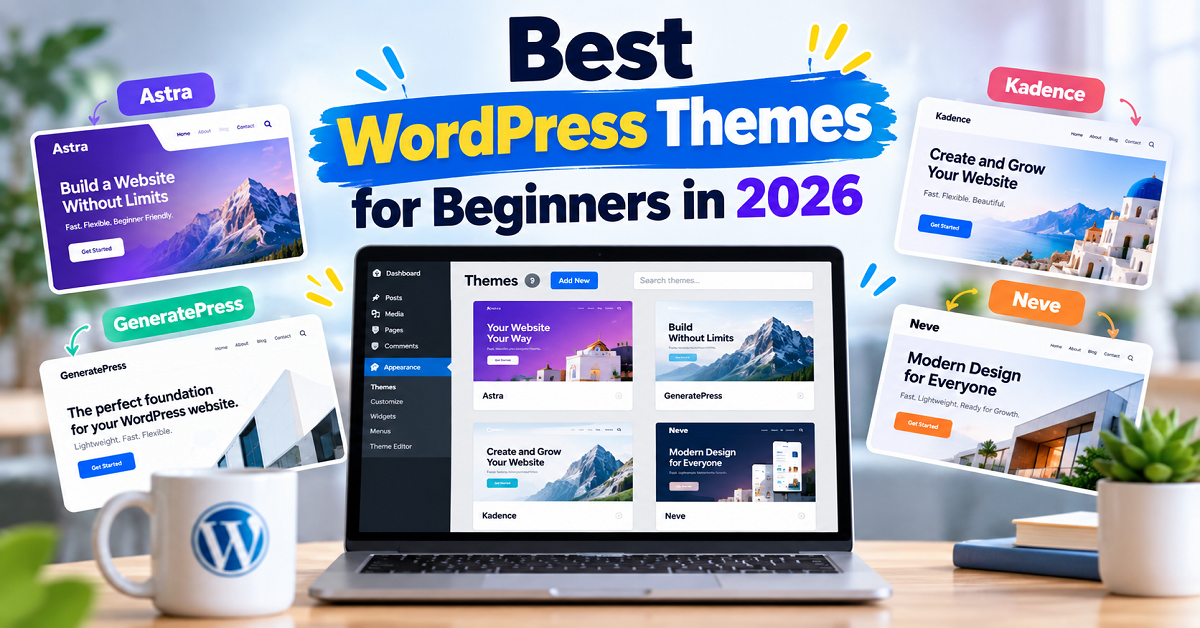
Best WordPress Themes for Beginners in 2026
Now that we know what to look for in a beginner-friendly WordPress theme, let’s look at the themes themselves.
There is no single theme that is perfect for every website. A theme that works beautifully for a personal blog may not be the right choice for an online store, while a theme that gives a developer hundreds of customization options may feel overwhelming to someone building their first website.
So, instead of looking only at popularity, we’ll consider what each theme is actually good at.
Best WordPress Themes for Beginners: Quick Comparison
Here is a quick overview before we look at each theme individually.
| WordPress Theme | Best For | Free Version | Ease of Use | Customization | Good For Beginners |
|---|---|---|---|---|---|
| GeneratePress | Blogs, affiliate sites, content websites | Yes | Easy to Moderate | Excellent | Yes |
| Astra | Blogs, business sites, multipurpose websites | Yes | Easy | Excellent | Yes |
| Kadence | Blogs, business sites, WooCommerce | Yes | Easy | Excellent | Yes |
| Neve | Blogs, small businesses, simple websites | Yes | Easy | Very Good | Yes |
| Blocksy | Blogs, affiliate sites, ecommerce | Yes | Easy to Moderate | Excellent | Yes |
| OceanWP | Business and ecommerce websites | Yes | Easy to Moderate | Very Good | Yes |
| Hello Elementor | Elementor websites | Yes | Easy with Elementor | Limited without Elementor | Yes, if using Elementor |
| Twenty Twenty-Six | Simple blogs and block-based websites | Yes | Easy | Good | Yes |
The important thing to remember is that this table is only a starting point.
Let’s look at each option in more detail.
1. GeneratePress
If your priority is building a clean, lightweight and flexible website, GeneratePress is one of the themes worth considering.
GeneratePress is designed as a lightweight foundation rather than a theme that tries to provide every possible visual effect out of the box. The developer describes it as focusing on speed, stability and accessibility.
That approach can be particularly useful for blogs and content-focused websites.
Why Beginners May Like GeneratePress
One of the biggest advantages is that you don’t have to use every feature at once.
You can start with the basic theme and gradually add functionality as your website grows.
The free version gives you a foundation for creating a WordPress website, while the premium version adds considerably more control over layouts, typography, colors, WooCommerce integration, navigation and other areas. GeneratePress Premium currently includes features such as additional customization controls, a theme builder, starter sites, WooCommerce controls and an advanced layout system.
This “start simple and add what you need” approach can be useful for a beginner.
GeneratePress for Blogging
GeneratePress is particularly suitable for content-heavy websites.
Imagine you are starting a website about:
- Blogging
- Technology
- Affiliate marketing
- Personal finance
- Travel
- Tutorials
- Reviews
- News and information
In these situations, the actual content is more important than having a complicated homepage with dozens of animations.
A clean theme can help your readers focus on the article.
This is also why GeneratePress can be a good option for an affiliate website. You can create a simple article layout and then add product comparison tables, affiliate buttons and other elements using plugins or the WordPress block editor.
GeneratePress Free vs Premium
The free version is enough to build a basic website.
However, if you want extensive control over the design, the premium version adds many more options.
GeneratePress currently lists GP Premium separately at $59 per year, while GeneratePress One bundles GP Premium with GenerateBlocks Pro and GenerateCloud at $149 per year. Pricing can change, so check the current pricing before purchasing.
Pros of GeneratePress
- Lightweight foundation
- Good choice for content websites
- Strong customization options
- Works well with the WordPress block editor
- Premium version adds advanced controls
- Starter sites are available
- Suitable for blogs and affiliate websites
- Focus on performance and accessibility
Cons of GeneratePress
- The free version has fewer customization options than the premium version
- Beginners may need some time to understand the many settings available in the premium version
- The default design can feel very simple if you want a highly visual website immediately
- Advanced customization becomes more useful when combined with additional GeneratePress products
Who Should Use GeneratePress?
GeneratePress is worth considering if you want:
A clean, fast foundation for a blog, affiliate website, business website or content-focused site.
It is especially useful if you don’t want your theme to control every aspect of your website.
If you’re building a content-focused website and expect to publish a lot of articles over time, this approach can make sense.
2. Astra
Astra is another popular option for beginners who want a combination of easy customization and ready-made designs.
One of Astra’s biggest attractions is its large collection of starter templates.
Astra currently offers hundreds of free and premium website templates covering categories such as blogs, business websites, creative websites and ecommerce. Its Starter Templates system can import complete website designs rather than requiring you to build every page from scratch.
For someone who doesn’t want to spend several days designing a homepage, this can be very useful.
Why Beginners May Like Astra
Suppose you install WordPress today.
You have a blank website.
You know what you want to write about, but you don’t know how to design a professional homepage.
With Astra’s starter templates, you can select a design and use it as a starting point.
You can then replace:
- Demo logo
- Text
- Images
- Colors
- Pages
- Menus
with your own content.
Astra’s current starter template system supports both the native WordPress block editor and Elementor for many designs.
That makes Astra flexible for beginners with different preferences.
Astra for Business Websites
Astra can be particularly useful for small business websites.
For example, imagine a local business needs:
- Home page
- About page
- Services page
- Contact page
- Testimonials
- Blog
Starting from a complete template can save considerable time.
You don’t need to understand web design principles before creating the first version of the website.
Astra for Blogs
Astra can also work well for blogs.
You can create a simple blog and customize typography, colors, layouts and other visual elements.
The important thing is not to import a complicated demo simply because it looks impressive.
Choose a template that matches the structure of your actual website.
Astra Free vs Pro
Astra has a free version, and the company states that the free version will remain available. The paid Astra Pro offering adds additional customization and other features.
Astra’s current product lineup has also expanded into broader toolkits, so it is worth checking exactly what a particular plan includes before purchasing.
Pros of Astra
- Beginner-friendly
- Large collection of starter templates
- Good customization options
- Suitable for blogs and business websites
- Works with the WordPress block editor
- Works with Elementor
- WooCommerce support
- Free version available
- Large ecosystem
Cons of Astra
- The large number of options can feel overwhelming
- Some advanced features require paid products
- Starter templates can encourage beginners to install more functionality than they actually need
- You need to understand which features come from Astra and which come from plugins
Who Should Use Astra?
Astra is a good option for beginners who want:
A flexible theme plus ready-made website designs that can get a new website looking professional quickly.
If you care more about having lots of design choices than keeping the setup extremely minimal, Astra may fit your needs well.
3. Kadence
Kadence has become another popular choice among WordPress users who want a modern design system without relying completely on a page builder.
One of the reasons it is worth considering is its focus on customization through WordPress’s native editing environment.
Kadence is particularly interesting for people who want more design control while still keeping the website relatively straightforward to manage.
Why Beginners May Like Kadence
A beginner may want to change things such as:
- Header layout
- Footer layout
- Colors
- Typography
- Buttons
- Page width
- Blog layout
- Navigation
Kadence provides controls for many of these areas.
This means you can create a more customized website without necessarily having to write CSS.
It also works well with Gutenberg, which means you can use WordPress’s native block editor rather than immediately installing a separate page builder.
Kadence for Bloggers
Kadence can work particularly well for bloggers who care about typography and page layout.
For example, you might want:
- A clean article layout
- A wide featured image
- A readable content column
- A custom author section
- Related posts
- A customized footer
- Different layouts for different pages
A theme with strong layout controls can make these changes easier.
Kadence for Business Websites
Kadence is not limited to blogs.
You can also use it for:
- Service websites
- Portfolio websites
- Agency websites
- Personal brands
- Small businesses
- Ecommerce websites
This makes it a flexible choice if you aren’t completely sure where your website will go in the future.
Pros of Kadence
- Modern design options
- Strong customization controls
- Good compatibility with Gutenberg
- Suitable for blogs and business websites
- Good choice for users who want visual control
- WooCommerce support
- Starter templates available
- Free version available
Cons of Kadence
- Some advanced functionality requires paid products
- The number of settings can take time to understand
- Beginners may initially use more customization than they actually need
Who Should Use Kadence?
Kadence is worth considering if you want:
A modern WordPress theme with strong customization options and good block-editor support.
It can be a particularly good fit for someone who wants more visual control but doesn’t necessarily want to build the entire website around Elementor.
4. Neve
Neve is another lightweight WordPress theme from Themeisle.
It is designed to be flexible enough for different types of websites while keeping setup relatively simple.
Themeisle describes Neve as a lightweight theme and highlights its compatibility with Gutenberg and several popular page builders, including Elementor.
Why Beginners May Like Neve
Neve provides a live customization experience, allowing you to see changes as you make them.
It also provides controls for areas such as the header and footer.
For a beginner, this can be helpful because you don’t have to repeatedly save your changes and open another browser tab to see what happened.
Neve also offers starter sites that can help you get a website online quickly.
Neve for Small Business Websites
Neve is worth considering if you are building a relatively simple website for a:
- Freelancer
- Consultant
- Local business
- Photographer
- Designer
- Blogger
- Small service company
For these websites, you generally don’t need hundreds of complicated features.
You need a clean structure that allows visitors to understand:
Who you are → What you offer → Why they should trust you → How they can contact you.
A flexible lightweight theme can handle that structure without unnecessary complexity.
Neve for Bloggers
Neve can also work well for blogs.
Its lightweight approach can provide a good foundation, while its customization options allow you to adjust the website to match your branding.
If you want to use Elementor, Neve also supports it.
Pros of Neve
- Lightweight
- Beginner-friendly
- Live customization
- Good block editor compatibility
- Elementor compatibility
- Starter sites
- Responsive design
- Suitable for blogs and small businesses
- Free version available
Cons of Neve
- Some advanced features require Neve Pro
- The number of options can increase as you add premium features
- Users looking for extremely advanced design control may need additional tools
Who Should Use Neve?
Neve is worth considering if you want:
A relatively simple, flexible theme for a blog, small business website or personal website.
It can also be a good starting point if you expect to experiment with both Gutenberg and a page builder.
5. Blocksy
Blocksy is a modern WordPress theme that gives users a considerable amount of control over the website’s appearance.
One of its biggest strengths is its visual customization system.
Blocksy’s settings are organized through the WordPress Customizer, and changes can be previewed in real time. The theme provides controls for areas such as colors, typography, layouts, sidebars, headers and footers.
Why Beginners May Like Blocksy
Imagine that you want to change your header.
Instead of editing code, you can use the theme’s visual controls to change the structure and appearance.
The same idea applies to other parts of the website.
Blocksy provides a header builder and footer builder, along with global color and typography controls.
This can make it easier to create a website that doesn’t look exactly like the default theme installation.
Blocksy for Affiliate Websites
Blocksy is an interesting option for affiliate bloggers.
Its ecosystem includes extensions for things such as product reviews and trending posts. The free extensions listed by Blocksy include a Product Reviews extension intended for affiliate-style websites.
That doesn’t mean you should choose Blocksy solely because of this feature.
Your affiliate website still needs useful content, proper disclosures, good product research and a strong user experience.
But having theme-level support for relevant content layouts can be convenient.
Blocksy for Ecommerce
Blocksy also places significant emphasis on WooCommerce.
Its feature set includes a range of ecommerce-related controls, with additional capabilities available through Blocksy Pro.
This makes it worth considering if you expect your website to eventually sell products.
Performance Features
Blocksy provides a dedicated performance panel with options for controlling aspects of CSS delivery, WordPress emoji scripts, local Gravatars and image lazy loading.
These controls can be useful, but beginners should remember that simply turning on every performance option isn’t automatically the right approach.
Performance settings should be tested on the actual website.
Pros of Blocksy
- Modern design
- Strong customization options
- Visual header and footer builders
- Good Gutenberg support
- WooCommerce-focused features
- Starter sites
- Useful options for affiliate-style websites
- Performance controls
- Free version available
Cons of Blocksy
- The number of options can be overwhelming at first
- Some advanced features require Blocksy Pro
- The companion plugin adds additional functionality that beginners may not need immediately
- Users looking for an ultra-minimal setup may prefer a simpler theme
Who Should Use Blocksy?
Blocksy is worth considering if you want:
A modern theme with strong visual controls, particularly for blogs, affiliate websites and ecommerce websites.
It can be a good choice for someone who wants more control over the appearance of the website without manually writing code.
6. OceanWP
OceanWP has been around for years and is another theme beginners can consider.
It is designed as a multipurpose theme, meaning it can be used for different kinds of websites rather than being focused exclusively on blogging.
This flexibility is useful if you’re not yet sure what type of website you will build.
Where OceanWP Fits
OceanWP can be used for:
- Blogs
- Business websites
- Portfolio websites
- Ecommerce stores
- Agency websites
- Personal websites
Its broad feature set makes it possible to create different website styles.
The trade-off is that beginners may encounter more settings than they need for a simple blog.
This is a common theme-selection problem:
More features don’t automatically mean a better website.
If you’re only building a simple blog, you don’t necessarily need every feature available in a multipurpose theme.
Pros of OceanWP
- Flexible multipurpose theme
- Free version available
- Suitable for different website types
- WooCommerce support
- Good customization options
- Starter/demo websites available
- Long-standing WordPress ecosystem
Cons of OceanWP
- Can feel feature-heavy for a simple beginner blog
- Some useful functionality requires premium extensions
- Beginners may need time to understand all the available settings
Who Should Use OceanWP?
OceanWP makes sense if you want:
A flexible multipurpose theme and expect your website to need more than a basic blog layout.
If you’re building a simple content website and want the fewest possible settings, you may prefer one of the more minimal options discussed above.
7. Hello Elementor
Hello Elementor is a slightly different case from the other themes on this list.
It is designed primarily as a minimal foundation for websites built with Elementor.
That means you shouldn’t think of Hello Elementor as a traditional feature-rich theme.
Instead, think of it like a blank canvas.
If you already know that you want to build your website using Elementor, Hello Elementor can make sense.
But if you’re a complete WordPress beginner and don’t intend to use Elementor, there may be little reason to choose it over a more complete theme.
When Hello Elementor Makes Sense
Suppose you want to build a website using Elementor for almost everything.
You might want:
- Custom landing pages
- Visual drag-and-drop design
- Custom page layouts
- Marketing pages
- Highly designed sections
In that situation, a minimal theme can reduce the amount of design control that comes from the theme itself.
Elementor becomes the main design system.
When You Should Avoid It
If your goal is simply:
“I want to start a blog and publish articles.”
you probably don’t need to build everything with a page builder.
The native WordPress editor and a good lightweight theme may be enough.
Pros of Hello Elementor
- Minimal foundation
- Designed for Elementor
- Useful for highly customized Elementor websites
- Simple starting point
- Suitable for landing-page-focused websites
Cons of Hello Elementor
- Not the best fit if you don’t plan to use Elementor
- Provides less traditional theme functionality
- You may become more dependent on Elementor
- A beginner may find the Elementor ecosystem more complicated than necessary
Who Should Use Hello Elementor?
Choose Hello Elementor primarily if:
You already intend to build your website with Elementor.
For a normal beginner blog, there are simpler options.
8. Twenty Twenty-Six and WordPress Default Themes
You don’t always need a third-party theme.
WordPress itself provides default themes designed to work with the platform’s block-based editing system.
This is an option that beginners sometimes overlook.
Default WordPress themes can be useful if your goal is to learn WordPress itself rather than immediately build a heavily customized website.
They also have an important advantage:
You are using a theme created specifically around the WordPress ecosystem.
The block-based approach allows you to work with WordPress’s Site Editor and customize different parts of the website.
For example, you can work with:
- Headers
- Footers
- Templates
- Navigation
- Colors
- Typography
- Layouts
This approach can feel different from the traditional WordPress Customizer.
If you’re completely new to WordPress, there may be a small learning curve.
But learning the block editor can be useful because WordPress is increasingly built around blocks.
Who Should Consider a Default WordPress Theme?
Consider one if:
- You want a simple website
- You want to learn WordPress’s native editing system
- You don’t need hundreds of design options
- You prefer not to install additional theme-related plugins
- You want to experiment before buying anything
For a personal blog or basic information website, this can be perfectly reasonable.
WordPress Themes for Beginners: Detailed Comparison
Now that we’ve looked at the major options, here’s a more practical comparison.
| Theme | Best Use | Customization | Beginner Friendliness | Free Version | Page Builder Need |
|---|---|---|---|---|---|
| GeneratePress | Blogs, affiliate, content sites | High | High | Yes | Not required |
| Astra | Blogs, business, multipurpose | High | High | Yes | Not required |
| Kadence | Blogs, business, ecommerce | High | High | Yes | Not required |
| Neve | Blogs, small business | High | High | Yes | Not required |
| Blocksy | Blogs, affiliate, ecommerce | Very High | High | Yes | Not required |
| OceanWP | Multipurpose websites | High | Medium-High | Yes | Optional |
| Hello Elementor | Elementor websites | Elementor-based | High if using Elementor | Yes | Elementor is the main focus |
| WordPress default themes | Simple blogs, block websites | Good | High | Yes | Not required |
The word “best” becomes much easier to understand when you look at the website you are trying to build.
For example, a beginner who wants a simple blog doesn’t necessarily need the same setup as someone creating a WooCommerce store.
Which Theme Should You Consider for a Blog?
If your main goal is blogging, your priorities should generally be:
- Easy content creation
- Good typography
- Clean article layout
- Mobile readability
- Performance
- Easy navigation
- Good category and archive layouts
- Compatibility with your SEO and other essential plugins
This is where themes such as GeneratePress, Astra, Kadence, Neve and Blocksy become particularly relevant.
Don’t choose a blogging theme simply because its homepage looks beautiful.
Your readers will spend most of their time reading your articles.
Therefore, the single-post layout may be more important than the homepage.
Before choosing a theme, open a demo article and look at:
- Font size
- Line spacing
- Content width
- Heading styles
- Featured image
- Author information
- Related posts
- Sidebar
- Comment section
- Mobile layout
A beautiful homepage won’t compensate for a difficult-to-read article.
Which Theme Should You Consider for an Affiliate Website?
Affiliate websites have some additional requirements.
For example, you may need:
- Product comparison tables
- Pros and cons
- Product images
- Affiliate buttons
- Product boxes
- Review sections
- Disclosure notices
- Category pages
- Search functionality
For this type of website, a lightweight theme with flexible content layouts can be useful.
GeneratePress, Astra, Kadence and Blocksy can all be considered.
Blocksy is particularly interesting for affiliate-style websites because its ecosystem includes a Product Reviews extension, while GeneratePress is attractive when you want a lightweight foundation and control over the layout.
But remember that the theme is only part of the setup.
Your affiliate conversions will depend much more on factors such as:
- Product selection
- Search intent
- Honest reviews
- Useful comparisons
- Clear calls to action
- Pricing information
- Trust
- Page experience
A theme cannot fix weak affiliate content.
Which Theme Should You Consider for a Business Website?
For a small business website, the priorities are slightly different.
You may need:
- Professional homepage
- Service pages
- Contact page
- About page
- Testimonials
- Call-to-action buttons
- Google Maps
- Lead forms
- Blog
Astra and Neve can be particularly convenient when you want to start with a ready-made website design.
Kadence and Blocksy are also worth considering when you want more control over the design.
GeneratePress can work very well too, especially if you prefer to build the website gradually rather than importing a complete design.
The Biggest Mistake Beginners Make When Choosing a Theme
There is one mistake I see repeatedly:
Choosing the theme based on the demo instead of the actual website requirements.
Imagine you see a beautiful photography theme.
It has huge images, animations, video backgrounds and impressive transitions.
You install it for a text-heavy technology blog.
Suddenly, the website doesn’t feel right.
Why?
Because you selected the theme based on someone else’s website rather than your own requirements.
Instead, start with your content.
If you’re creating a blog, look at the article layout.
If you’re creating a store, look at the product pages.
If you’re creating a business website, look at the service and contact pages.
If you’re creating an affiliate website, look at how easily you can present products and comparisons.
Choose the structure first. Choose the decoration second.
That simple change in thinking can save you a lot of time.
One More Thing: Don’t Change Your Theme Every Week
When you start building a website, it is tempting to keep trying new themes.
You install Astra.
Then GeneratePress.
Then Kadence.
Then Blocksy.
Then another theme because its demo looks better.
Before you realize it, you’ve spent several days changing colors and menus instead of publishing content.
Don’t fall into this trap.
Choose a theme that meets your requirements, customize it reasonably, and start creating useful content.
You can always change your theme later if your needs genuinely change.
But constantly changing themes rarely moves a new website forward.
Our Shortlist So Far
If you want a simple way to narrow down the choices, start by thinking about your website type:
| If you’re building… | Themes worth considering |
|---|---|
| Blog | GeneratePress, Astra, Kadence, Neve, Blocksy |
| Affiliate blog | GeneratePress, Astra, Kadence, Blocksy |
| Business website | Astra, Kadence, Neve, GeneratePress |
| Ecommerce website | Astra, Kadence, Blocksy, OceanWP |
| Elementor website | Astra, Hello Elementor, Neve |
| Simple personal website | Neve, Astra, Kadence, WordPress default theme |
| Block-editor-focused website | GeneratePress, Kadence, Blocksy, WordPress default themes |
This isn’t a ranking.
It is simply a way of matching the theme’s strengths with the type of website you want to build.
In the next section, we’ll go deeper into which theme makes sense for different beginner situations, including whether you should choose GeneratePress or Astra, whether you actually need a premium theme, and how much you should realistically spend on a WordPress theme.
We’ll also look at the important question many beginners forget to ask:
What happens if you change your WordPress theme later?
That matters more than most people realize.
Best WordPress Themes for Beginners in 2026
So far, we’ve looked at what makes a WordPress theme beginner-friendly and compared some of the most popular options.
But you may still be thinking:
“Okay, but which one should I actually choose?”
That’s a reasonable question.
The answer depends on what you’re building, how much customization you need, whether you want to use a page builder, and how much you want to spend.
Let’s make that decision easier.
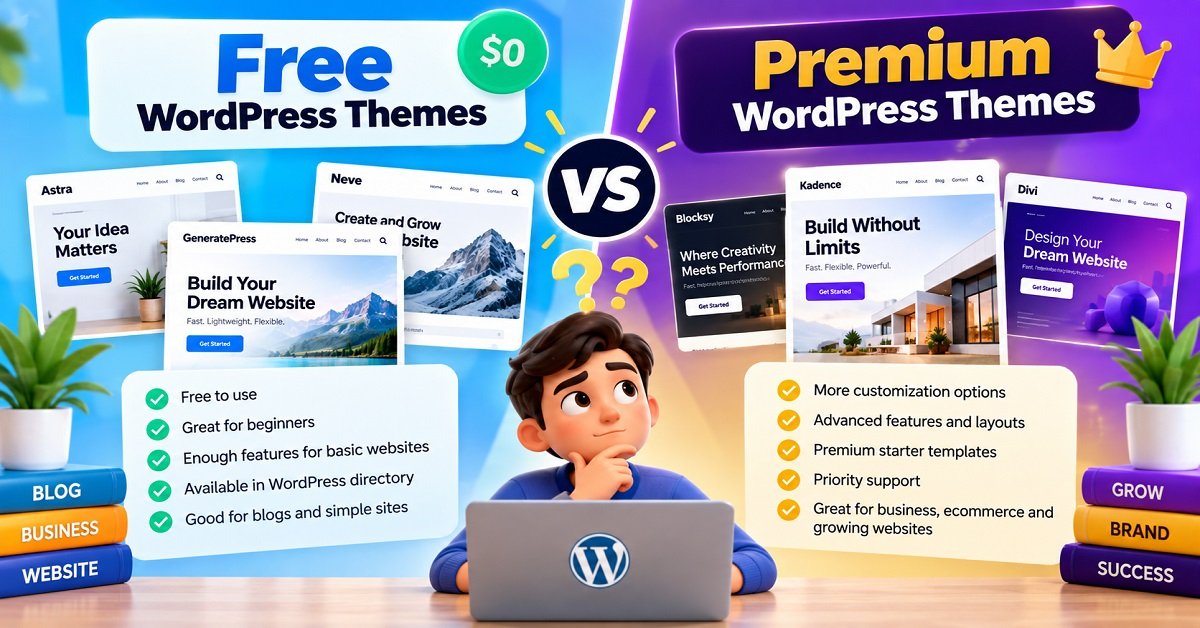
Free vs Premium WordPress Themes: Which Should a Beginner Choose?
One of the first decisions you’ll face is whether to use a free theme or pay for a premium one.
For a new website, starting with a free theme is often perfectly reasonable.
You don’t need to spend money just because you’re starting a WordPress website.
In fact, spending money on a theme before you understand what your website actually needs can sometimes lead to unnecessary expenses.
When a Free Theme Is Enough
A free theme may be enough if you’re creating:
- A personal blog
- A simple informational website
- A basic portfolio
- A small hobby website
- A new content website
- A simple affiliate website
For example, suppose you’re starting a technology blog.
You need:
- Homepage
- Blog posts
- Categories
- Navigation
- Search
- About page
- Contact page
You don’t necessarily need 100 customization options.
A good free theme can provide the foundation.
You can spend the money you saved on things that may have a bigger impact, such as better hosting, useful tools, professional images, or content creation.
When a Premium Theme Makes Sense
A premium version becomes more useful when you need additional functionality or customization.
For example:
- More header and footer controls
- Advanced blog layouts
- More typography controls
- WooCommerce features
- Advanced display conditions
- Additional starter sites
- More layout options
- Premium support
- Additional theme extensions
The key question isn’t:
“Is the premium version better?”
Instead ask:
“Does the premium version solve a problem I actually have?”
If the answer is no, you probably don’t need it yet.
Should You Buy a Premium Theme Immediately?
For most beginners, I would recommend waiting.
Start by building the website.
Publish some content.
Understand what you like and what you don’t like.
Then you’ll know exactly which limitations are bothering you.
For example, after publishing 20 articles, you might realize:
“I need more control over my blog archive layout.”
That’s a real reason to look at premium features.
But if you haven’t published a single article and you’re buying a premium theme because its demo has a beautiful animation, you’re making the decision too early.
Your first goal should be to build and publish, not endlessly customize.
GeneratePress vs Astra vs Kadence
These three names often appear together when people search for beginner-friendly WordPress themes.
All three can work well, but they approach customization somewhat differently.
Instead of declaring one the winner, let’s look at where each one fits.
| Feature | GeneratePress | Astra | Kadence |
|---|---|---|---|
| Beginner-friendly | Yes | Yes | Yes |
| Free version | Yes | Yes | Yes |
| Blog websites | Excellent fit | Excellent fit | Excellent fit |
| Business websites | Yes | Excellent fit | Excellent fit |
| Starter sites | Yes | Yes | Yes |
| Gutenberg/block editor | Strong | Strong | Strong |
| Elementor | Compatible | Strong ecosystem | Compatible |
| WooCommerce | Yes | Yes | Yes |
| Customization | Strong | Very strong | Very strong |
| Minimal setup | Excellent | Good | Good |
| Large design ecosystem | Moderate | Very large | Growing |
| Best suited to | Content-focused sites | Multipurpose sites | Design flexibility |
This table should not be interpreted as a ranking.
The better question is which approach matches your needs.
When GeneratePress Makes Sense
Consider GeneratePress if you want:
- A lightweight foundation
- A content-focused website
- A clean blog
- An affiliate website
- Strong control over layouts
- A theme that doesn’t force you into a particular design style
It is especially interesting if you’re comfortable starting with a relatively simple website and adding functionality only when necessary.
When Astra Makes Sense
Consider Astra if you want:
- Lots of starter templates
- A multipurpose theme
- Business website designs
- Easy visual customization
- Elementor compatibility
- A large ecosystem
Astra can be particularly convenient when you want to start with an existing website design instead of building everything from scratch.
When Kadence Makes Sense
Consider Kadence if you want:
- Strong visual customization
- Good Gutenberg integration
- Flexible headers and footers
- Modern website layouts
- Blog and business website support
- A balance between simplicity and design control
Kadence can be an attractive option if you want your website to look customized without relying entirely on a page builder.
GeneratePress vs Astra: Which One Should You Pick?
This is probably one of the most common comparisons beginners encounter.
The simplest way to look at it is this:
GeneratePress: Start with a lightweight foundation and build around your content.
Astra: Start with a flexible multipurpose theme and use its large design ecosystem and starter templates when useful.
Imagine two beginners.
Beginner A: The Blogger
They want to start a technology blog.
They care about:
- Article readability
- Speed
- Simple navigation
- Categories
- Search
- Affiliate product boxes
- Publishing regularly
GeneratePress may appeal to this type of user because its lightweight, content-focused approach fits the project.
Beginner B: The Small Business Owner
They need:
- Homepage
- Services
- About
- Testimonials
- Contact
- Blog
They don’t want to design everything themselves.
Astra’s starter templates may be more convenient for this type of project.
Neither situation requires a universal winner.
The right choice depends on the website.
Do You Need Elementor With These Themes?
Not necessarily.
This is an important point for beginners.
When you watch WordPress tutorials on YouTube, you will often see people installing Elementor immediately.
That doesn’t mean every WordPress website needs Elementor.
WordPress already has a built-in block editor.
You can use blocks to create:
- Headings
- Paragraphs
- Images
- Columns
- Buttons
- Lists
- Videos
- Quotes
- Tables
- Galleries
For many blogs and basic websites, this is enough.
When a Page Builder Can Be Useful
A page builder can make sense if you need more visual design control.
For example, you might want to create:
- Complex landing pages
- Marketing pages
- Custom hero sections
- Highly designed sales pages
- Custom layouts
- Visually complex business pages
In these situations, a page builder can give you more control.
When You Probably Don’t Need One
If you’re building a simple blog, you may not need one.
Suppose your homepage contains:
Headline → Introduction → Latest Articles → Categories → About → Footer
You can create that structure using WordPress’s native tools and a suitable theme.
Adding another page builder may simply give you another system to learn and maintain.
This doesn’t mean page builders are bad.
It means:
Use one because you need it, not because every tutorial tells you to install one.
Do Themes Affect Website Speed?
Yes, a theme can affect performance, but it is important to understand the bigger picture.
Your website speed depends on multiple components.
Think of it like a car.
The theme is one component of the car.
But your hosting, images, plugins and scripts are other components.
A lightweight theme on poor hosting can still produce a slow website.
Likewise, a good hosting setup can be slowed down by huge images and dozens of unnecessary plugins.
Common Causes of a Slow WordPress Website
A slow website may be caused by:
- Heavy themes
- Large unoptimized images
- Too many plugins
- Poor hosting
- Excessive JavaScript
- External scripts
- Advertising networks
- Video embeds
- Poor caching configuration
- Unnecessary fonts
- Third-party widgets
So don’t make the mistake of thinking:
“I installed a lightweight theme, therefore my website is fast.”
You still need to optimize the rest of the website.
If speed is one of your priorities, our guide on Web Hosting Explained for Beginners can help you understand why hosting matters before blaming your theme.
How Many Plugins Should You Install?
There is no magic number.
You may have heard people say:
“Never install more than 10 plugins.”
That’s not a useful rule.
One well-coded plugin may have very little performance impact, while a poorly developed plugin can cause problems.
Instead of counting plugins, ask:
Does this plugin provide something my website genuinely needs?
For example, a website may reasonably need plugins for:
- SEO
- Contact forms
- Caching
- Security
- Backups
- Analytics
- Ecommerce
But you probably don’t need five plugins that all do almost the same thing.
The same principle applies to themes.
Avoid unnecessary features simply because they are available.
What Happens If You Change Your WordPress Theme Later?
This is something beginners often worry about.
The good news is that changing themes doesn’t normally delete your WordPress posts and pages.
Your content is stored separately from the theme.
However, changing themes can still affect the presentation of your website.
For example, you may need to recreate or adjust:
- Menus
- Widgets
- Header
- Footer
- Homepage settings
- Theme-specific layouts
- Custom CSS
- Theme-specific shortcodes
- Theme-specific blocks
- Design settings
This is why choosing a theme with a sensible long-term structure is useful.
Theme-Specific Features Can Cause Problems
Suppose Theme A gives you a special shortcode for displaying a product box.
You use it in 100 articles.
Later you switch to Theme B.
If that shortcode belonged exclusively to Theme A, those product boxes may no longer display correctly.
This is one reason important website functionality should generally live in plugins rather than being locked inside a theme.
Your theme should primarily handle the presentation.
Your content and core functionality should remain as independent as reasonably possible.
Can You Change Your Theme Without Losing SEO?
Changing themes does not automatically mean losing your search rankings.
However, you need to be careful.
A theme change can modify:
- Heading structure
- Internal links
- Navigation
- Page layout
- Breadcrumbs
- Structured data
- Image sizes
- Page speed
- Mobile usability
- Indexable content
If those changes create technical or usability problems, your search performance could be affected.
Therefore, don’t change the theme on a large established website casually.
Before making a major theme change:
- Take a complete backup.
- Test the new theme on a staging website if possible.
- Check important pages.
- Check menus.
- Check mobile layouts.
- Check internal links.
- Check structured data.
- Check page speed.
- Check forms.
- Check affiliate links and buttons.
- Check ads if you use them.
- Test the website after going live.
If your website already receives significant organic traffic, this preparation becomes even more important.
Beginner Mistakes to Avoid When Choosing a WordPress Theme
Let’s look at some mistakes that can waste your time.
Mistake 1: Choosing the Most Beautiful Demo
A theme demo is designed to impress you.
That’s its job.
But your website won’t contain the developer’s carefully selected images, text and layout.
Always imagine the theme with your own content.
Would your 2,000-word article still look good?
Would your product comparison table fit?
Would your images look appropriate?
Would the mobile version remain readable?
These questions are more important than whether the demo looks impressive.
Mistake 2: Choosing a Theme With Too Many Features
More features sound better.
But more features can also mean:
- More settings
- More complexity
- More things to maintain
- More opportunities for conflicts
- More things you never use
If you only need a blog, don’t buy a theme designed to do everything imaginable.
Mistake 3: Installing Too Many Starter Templates
Starter templates can save time.
But importing several templates and experimenting with them can leave your website filled with:
- Unused pages
- Demo images
- Unnecessary menus
- Extra plugins
- Unused widgets
- Sample content
Choose one starting point.
Then customize it.
Mistake 4: Buying a Theme Because Someone on YouTube Recommended It
YouTube can be an excellent source of WordPress tutorials.
But a theme recommendation that makes sense for one creator may not make sense for your website.
Ask:
Why did they recommend it?
Was it because of:
- Speed?
- Ecommerce?
- Design?
- Elementor?
- Blogging?
- Their affiliate relationship?
- A feature you actually need?
Learn from recommendations, but make the final choice based on your own requirements.
Mistake 5: Ignoring the Mobile Version
This is one of the easiest mistakes to make.
You build the website on a 24-inch monitor.
Everything looks perfect.
Then you open it on your phone.
The menu is awkward.
The font is too small.
The buttons are too close together.
The sidebar creates a strange layout.
Always test your website on an actual phone.
Mistake 6: Changing Themes Instead of Improving Content
This is especially common with new bloggers.
You spend three hours adjusting:
- Logo size
- Button colors
- Header spacing
- Footer design
- Fonts
But you haven’t published a new article in two weeks.
Your website doesn’t need to be perfect before you start publishing.
A simple, clean website with excellent content is often more useful than a beautiful website with nothing valuable to read.
A Simple 5-Step Method to Choose Your WordPress Theme
If everything above feels like too much information, use this simple process.
Step 1: Identify Your Website Type
Are you building:
- Blog?
- Affiliate website?
- Business website?
- Portfolio?
- Ecommerce store?
- Membership website?
- Personal website?
Write it down.
Step 2: Identify Your Three Most Important Requirements
For example:
Blog:
- Fast
- Easy to read
- Simple customization
Business website:
- Professional design
- Landing pages
- Easy customization
Ecommerce website:
- WooCommerce compatibility
- Product layouts
- Mobile shopping experience
This prevents you from being distracted by features you don’t need.
Step 3: Shortlist Two or Three Themes
Don’t compare 50 themes.
Choose two or three that appear to fit your requirements.
For example, if you’re creating a blog:
- GeneratePress
- Astra
- Kadence
That’s enough.
Step 4: Test the Actual Demo
Don’t just look at the homepage.
Open:
- Blog post
- Category page
- Contact page
- Mobile version
- Menu
- Footer
Ask yourself:
“Would my website look good using this structure?”
Step 5: Stop Looking and Start Building
This final step sounds simple, but it is important.
Once a theme meets your requirements, choose it.
Don’t spend another week comparing 20 other themes because one has a slightly different button design.
There will always be another theme.
Your website needs content.
Which WordPress Theme Is Best for a Complete Beginner?
There isn’t one theme that every beginner should use.
But you can narrow the decision down based on your goals.
If You Want a Simple Blog
Look at:
- GeneratePress
- Astra
- Kadence
- Neve
- Blocksy
- WordPress default themes
Focus on article readability and simplicity.
If You Want an Affiliate Blog
Look at:
- GeneratePress
- Astra
- Kadence
- Blocksy
Focus on:
- Article layouts
- Tables
- Product sections
- Mobile usability
- Speed
- Customization
If You Want a Business Website
Look at:
- Astra
- Kadence
- Neve
- GeneratePress
Starter templates can be particularly useful if you want to get a professional-looking website online quickly.
If You Want Elementor
Look at:
- Hello Elementor
- Astra
- Neve
- Other themes with strong Elementor compatibility
But first decide whether you actually need Elementor.
If You Want WooCommerce
Look at:
- Astra
- Kadence
- Blocksy
- OceanWP
- GeneratePress
Your priority should be the actual shopping experience rather than simply how attractive the theme demo looks.
What Should You Choose if You’re Completely New to WordPress?
If you’re starting your first website and have no idea where to begin, don’t overcomplicate the decision.
Choose a reputable, actively maintained theme with:
- A free version
- Good documentation
- Responsive design
- Block editor compatibility
- Reasonable customization options
- A clean layout
- Good plugin compatibility
Then build the website.
You can learn the more advanced parts later.
You don’t need to understand every theme setting before publishing your first article.
In fact, you’ll probably understand what you actually need after you start using WordPress.
The Theme Is Important, But It Isn’t Your Website
This is an important mindset for beginners.
Your theme is the presentation layer.
It can make your website easier to use.
It can provide a clean structure.
It can give you customization options.
It can contribute to performance.
But your theme isn’t what makes people return to your website.
Your content does.
If you’re building a blog, focus on answering real questions.
If you’re building an affiliate website, focus on helping readers make informed purchasing decisions.
If you’re building a business website, focus on clearly explaining what you offer.
A theme should support those goals, not become the goal itself.
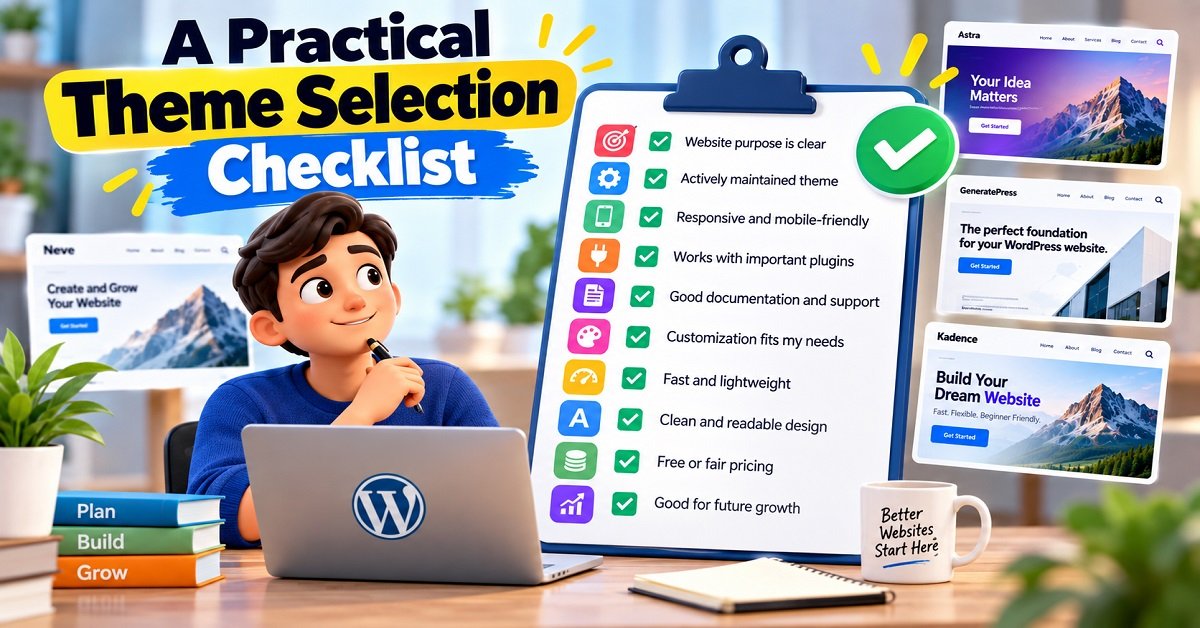
A Practical Theme Selection Checklist
Before making your final choice, save this checklist.
Website purpose
- I know what type of website I’m building.
- I know who the website is for.
- I know the main type of content I’ll publish.
Theme quality
- The theme is actively maintained.
- It is responsive.
- It works with my important plugins.
- It supports the WordPress editor.
- Documentation is available.
- It comes from a trustworthy source.
Performance
- The theme isn’t overloaded with unnecessary features.
- The demo performs reasonably well.
- I understand that hosting and plugins also affect speed.
Design
- Blog posts are easy to read.
- Navigation is clear.
- The mobile version looks good.
- Typography is comfortable.
- The layout suits my content.
Future
- I don’t need to change themes immediately.
- Important functionality isn’t unnecessarily locked into the theme.
- I understand which features are free and which require payment.
If you can tick most of these boxes, you’re probably ready to choose.
Don’t Let Theme Selection Stop You From Starting
There is a point where research stops being useful.
You can compare GeneratePress with Astra.
Then compare Astra with Kadence.
Then compare Kadence with Blocksy.
Then find another “best WordPress theme” article.
Then watch five YouTube videos.
Then change your mind again.
Meanwhile, your website still has no content.
Don’t let that happen.
A theme is important, but it is only the foundation.
Choose a reputable theme that meets your needs, customize the important parts, and start building.
You can improve the design as your website grows.
The Bottom Line
The best WordPress theme for a beginner is not necessarily the theme with the most features, the most beautiful demo, or the highest number of installations.
It is the theme that fits the website you’re actually building.
For a content-focused website, a lightweight theme such as GeneratePress can make sense.
For a website where ready-made designs are important, Astra is worth considering.
For strong visual customization with a block-editor-friendly approach, Kadence is an option worth exploring.
For a modern theme with extensive visual controls, Blocksy is another option.
Neve can work well for simple blogs and small business websites, while OceanWP remains an option for people who want a broader multipurpose setup.
And if you want to build primarily with Elementor, Hello Elementor can make sense as a minimal foundation.
The important thing is to match the theme to the project.
Don’t choose a theme first and then try to fit your website into it. Choose your website’s needs first, then choose the theme that supports them.
Best WordPress Themes for Beginners in 2026
We’ve covered what makes a WordPress theme beginner-friendly, compared some of the most popular options, and discussed how to choose a theme based on your website’s actual requirements.
Now let’s finish the practical side of things.
Once you’ve chosen a theme, what should you do next?
How do you install it?
What should you customize?
What should you check before publishing your website?
And perhaps most importantly, how do you know that you’ve made the right choice?
Let’s go through it step by step.
How to Install a WordPress Theme
Installing a WordPress theme is easier than it may sound.
If you’re using a theme available through the official WordPress Theme Directory, you can install it directly from your WordPress dashboard. WordPress’s current documentation describes the process through Appearance → Themes → Add New.
Method 1: Install a Free Theme From WordPress
Log in to your WordPress dashboard.
Then:
- Go to Appearance.
- Click Themes.
- Select Add New.
- Search for the theme you want.
- Click Preview if you want to inspect it.
- Click Install.
- Click Activate when the installation is complete.
For example, if you want to install GeneratePress, you can search for it from the theme installation screen.
WordPress also allows you to filter themes and preview them before activating them.
Method 2: Install a Premium Theme Using a ZIP File
Premium themes are often downloaded from the developer’s website as a ZIP file.
In that situation:
- Download the theme ZIP file from the official developer.
- Open your WordPress dashboard.
- Go to Appearance → Themes.
- Click Add New.
- Choose Upload Theme.
- Select the ZIP file.
- Click Install Now.
- Activate the theme.
WordPress officially supports installing themes from ZIP files through the dashboard.
One important point:
Download premium themes from the original developer or another trustworthy source.
Avoid websites offering “free” copies of paid themes.
Apart from licensing issues, modified or unofficial theme files can create security and maintenance problems.
Should You Install Multiple Themes?
You can install multiple themes, but you only need one active theme at a time.
WordPress allows you to keep other themes installed so that you can switch between them later.
However, you don’t need 20 themes sitting on your website.
If you have tested several themes and know you won’t use them, removing unnecessary themes can keep your WordPress installation cleaner.
It’s particularly sensible to keep a current default WordPress theme available as a fallback when practical.
For example, if a theme update causes a serious problem, having another working theme can help with troubleshooting.
What Should You Customize After Installing Your Theme?
Don’t start changing every setting immediately.
Start with the things visitors actually notice.
1. Upload Your Logo
If you have a logo, add it first.
Your logo helps visitors recognize your website and gives the site a more finished appearance.
Keep the logo simple.
You don’t need a huge logo that occupies half of the screen.
2. Set Your Website Colors
Choose a small color palette.
For example:
- One primary color
- One secondary color
- A text color
- A background color
You don’t need ten different colors.
Consistency usually looks more professional than excessive decoration.
3. Choose Readable Fonts
Typography has a bigger impact on a blog than many beginners realize.
Your readers are there to read your content.
Avoid extremely decorative fonts for body text.
Instead, prioritize:
- Readability
- Comfortable font size
- Good line spacing
- Clear headings
- Good contrast
Remember that a font that looks beautiful in a theme demo may not be comfortable for reading a 2,000-word article.
4. Configure Your Header
Your header normally contains some combination of:
- Logo
- Site name
- Navigation menu
- Search
- Social links
- Call-to-action button
Don’t overload it.
A beginner blog may only need:
Logo | Home | Blog | Categories | About | Contact
That’s enough.
5. Create a Clear Navigation Menu
Think about what your visitor wants to find.
If you have a technology blog, your menu might contain:
Blog | WordPress | Blogging | SEO | Hosting | About
If you have a business website, it might be:
Home | Services | About | Blog | Contact
Your navigation should help people find important content without making them think too much.
6. Configure the Footer
A footer is often overlooked.
Depending on your website, it can contain:
- About information
- Important pages
- Privacy Policy
- Terms and Conditions
- Disclaimer
- Contact information
- Copyright notice
- Social links
For a blog or affiliate website, make sure your important legal and disclosure pages are easy to access.
Appearance → Customize or Appearance → Editor?
This can confuse beginners because the WordPress interface depends partly on the type of theme you’re using.
With many classic themes, you’ll see customization options under:
Appearance → Customize
With a block theme, WordPress provides the Site Editor, which you can access through Appearance → Editor. WordPress explains that the Site Editor is available when a block theme is active and allows you to edit areas such as the header, navigation, content and footer.
So don’t worry if your dashboard doesn’t look exactly like a tutorial you watched.
The theme you’re using may simply use a different editing system.
Should You Import a Starter Template?
Starter templates can save a lot of time.
But don’t automatically import one.
Before importing a starter site, ask:
Does this structure actually match my website?
If you’re building a simple blog, a complicated agency template may create more work.
You might end up deleting:
- Extra pages
- Demo images
- Unwanted sections
- Unnecessary plugins
- Sample content
- Menus you don’t need
A starter template should be a starting point, not something you are forced to keep exactly as it is.
What Should You Do Immediately After Installing a Theme?
This is a useful checklist to keep.
WordPress Theme Setup Checklist
- Activate the theme
- Upload your logo
- Set website title and tagline
- Choose colors
- Set typography
- Configure the header
- Create the main menu
- Configure the footer
- Set homepage and blog page
- Check mobile layout
- Remove unnecessary demo content
- Check sidebar settings
- Add important legal pages
- Test contact forms
- Test navigation
- Check internal links
- Test important buttons
- Check website speed
- Take a backup
Don’t worry if you don’t understand every setting.
You can always come back later.
Don’t Edit Theme Files Directly Unless You Know What You’re Doing
WordPress provides a built-in Theme File Editor that allows users to view and modify theme files.
But beginners should generally avoid editing theme files directly unless they understand what they’re changing.
Why?
Because one small mistake in a PHP file can cause serious problems.
There is another problem too.
When you update the theme, your direct modifications may be overwritten.
If you need custom CSS or code, use the appropriate WordPress mechanism for it, such as the Customizer’s additional CSS area when available, a suitable plugin, or a child theme where appropriate.
The exact approach depends on what you’re trying to change.
What Is a Child Theme?
You may have heard the term child theme while searching for WordPress tutorials.
A child theme is a way to customize certain aspects of a parent theme while keeping the parent theme available for updates.
You don’t necessarily need one as a complete beginner.
If you’re only changing colors, fonts, layouts and other settings that the theme already provides, use the theme’s normal customization tools.
A child theme becomes more relevant when you need to make deeper code-level modifications.
So don’t create a child theme simply because someone says every WordPress website needs one.
It doesn’t.
How to Test Your New Theme Before You Consider the Website Finished
After customization, don’t immediately assume everything works.
Walk through your website like a visitor.
Test the Homepage
Ask:
- Can I immediately understand what this website is about?
- Is the navigation clear?
- Are important sections visible?
- Does the page look good on mobile?
Test a Blog Post
Open one of your actual articles.
Check:
- Heading sizes
- Paragraph spacing
- Images
- Links
- Tables
- Lists
- Buttons
- Author information
- Related posts
- Comments
- Sidebar
Test Your Mobile Layout
Open the website on your smartphone.
Check:
- Navigation
- Text size
- Images
- Tables
- Buttons
- Forms
- Horizontal scrolling
- Popups
This step is extremely important.
A website that looks great on a desktop can still provide a poor experience on a small screen.
Check Your Website Speed After Customization
Don’t judge the theme’s performance based only on its demo.
Test your actual website.
Why?
Because your website now contains your:
- Images
- Fonts
- Plugins
- Content
- Scripts
- Ads
- Analytics
- Embeds
These can change performance considerably.
If your website becomes slow after customization, don’t immediately blame the theme.
Check the entire setup.
A useful approach is to identify what is actually causing the slowdown before changing themes.
Sometimes the problem is a 3 MB hero image.
Sometimes it is a plugin.
Sometimes it is third-party JavaScript.
Sometimes it is hosting.
Sometimes several small problems add up.
Don’t Forget Accessibility
Once your website looks good, test whether it is comfortable to use.
Check:
- Text contrast
- Link visibility
- Heading structure
- Keyboard navigation
- Button labels
- Image alternative text
- Form labels
You don’t have to turn your website into a technical accessibility project on day one.
But basic accessibility should be part of your normal website-building process.
A website should be designed for people, not just search engines.
What About SEO After Installing a New Theme?
Your theme should provide a solid technical foundation, but it doesn’t perform your SEO for you.
After installing a theme, make sure your website has:
- Clear headings
- Descriptive page titles
- Readable content
- Logical navigation
- Internal links
- Mobile-friendly layouts
- Descriptive image alt text where appropriate
- Clean URLs
- Fast-loading pages
- Useful content
Also check that the theme hasn’t introduced unwanted duplicate elements or changed important page structures.
If you already have an established website, compare important pages before and after the theme change.
For a new website, you have the advantage of building these things correctly from the beginning.
How Often Should You Change Your WordPress Theme?
There is no fixed schedule.
You don’t need to change your theme every year simply because a new theme became popular.
Change it when you have a genuine reason.
For example:
- The current theme is no longer maintained
- It doesn’t work properly with your plugins
- You need functionality it cannot provide
- The design no longer fits your business
- The mobile experience needs a major improvement
- The theme creates technical problems
- You want to move to a different website-building approach
If your current theme works well and your website is performing properly, there is no rule saying you must replace it.
What Is the Best WordPress Theme for Beginners?
After everything we’ve discussed, here’s the simplest way to approach the question.
There isn’t one theme that is automatically right for every beginner.
Instead, use your website type to narrow down the options.
| Your Website Goal | Themes to Consider | What to Prioritize |
|---|---|---|
| Personal blog | GeneratePress, Astra, Kadence, Neve | Simplicity and readability |
| Content website | GeneratePress, Kadence, Astra | Performance and article layout |
| Affiliate website | GeneratePress, Astra, Blocksy, Kadence | Content layout and flexibility |
| Small business | Astra, Kadence, Neve, GeneratePress | Design and easy customization |
| Elementor website | Hello Elementor, Astra, Neve | Elementor compatibility |
| WooCommerce store | Astra, Kadence, Blocksy, OceanWP | Shopping experience |
| Simple website | Neve, WordPress default theme, GeneratePress | Ease of use |
| Block-editor-focused site | WordPress default block themes, GeneratePress, Kadence, Blocksy | Native WordPress editing |
Again, this isn’t a ranking.
It is a practical starting point.
Your hosting, plugins, content, design requirements and technical preferences can change which option makes the most sense.
My Practical Advice for a First WordPress Website
If this is your first WordPress website, don’t spend weeks trying to find a theoretically perfect theme.
Choose a reputable theme.
Make sure it is actively maintained.
Make sure it works with the WordPress editor and the plugins you need.
Make sure the mobile layout is good.
Make sure the design fits your content.
Then start publishing.
For many beginners, GeneratePress, Astra, Kadence, Neve and Blocksy provide enough flexibility to build a serious website without needing to start with an extremely complicated setup.
If you want a more native WordPress block-based experience, a current default WordPress block theme is also worth considering.
The best choice becomes much easier once you know what you’re actually building.
Final Word: Your Content Matters More Than Your Theme
Your theme matters.
It affects your website’s appearance, usability, customization and part of its technical foundation.
But don’t let the theme become an excuse to delay your website.
A beginner can spend weeks comparing themes and still not publish the first article.
Meanwhile, another person can choose a simple theme in an afternoon and start building useful content.
The second approach is usually more productive.
Choose a theme that is:
Clean. Responsive. Maintained. Flexible. Suitable for your website.
Then move on.
Your visitors are coming to your website because they want information, products, services or solutions.
Give them that.
A simple website with genuinely useful content can be far more valuable than a beautifully designed website that doesn’t answer the visitor’s question.
And as your website grows, you’ll learn more about what you actually need from your theme.
That’s when you can make more advanced decisions.
Frequently Asked Questions
What is the best WordPress theme for beginners?
There is no single theme that is best for every beginner. GeneratePress, Astra, Kadence, Neve and Blocksy are all options worth considering, depending on the type of website you’re building. Your choice should be based on factors such as ease of use, customization, performance, compatibility and the type of content you publish.
Is a free WordPress theme good enough for a beginner?
Yes. A free theme can be more than enough for a new blog or basic website. You should consider a premium upgrade only when you actually need features or customization that the free version doesn’t provide.
Is GeneratePress good for beginners?
GeneratePress can be a good choice for beginners who want a lightweight, content-focused foundation. The free version can be used for a basic website, while GP Premium adds more customization and starter-site options. GeneratePress currently lists GP Premium at $59 per year and GeneratePress One at $149 per year, although pricing can change.
Is Astra good for a blog?
Yes. Astra can be used for blogs and provides customization options and starter templates. It can also be used for business websites and ecommerce projects, making it a flexible option if your website may expand later.
Is Kadence better than GeneratePress?
They take somewhat different approaches, so it depends on what you need. GeneratePress is particularly appealing if you want a lightweight, content-focused foundation, while Kadence offers strong visual customization and block-editor-oriented controls. Compare their features against your actual website requirements rather than choosing solely based on popularity.
Do I need Elementor with my WordPress theme?
No. WordPress already includes a block editor that can handle many websites without a separate page builder. Elementor can be useful when you need more visual design control or want to build pages around its ecosystem.
Can I change my WordPress theme later?
Yes. WordPress allows you to install and activate another theme. However, changing themes can affect layouts, menus, widgets, theme-specific features and customizations, so established websites should be tested carefully before making a change.
Will changing my WordPress theme hurt SEO?
Changing a theme does not automatically hurt SEO, but a poorly managed change can create problems. Changes to headings, navigation, page structure, structured data, internal links, mobile usability or performance can affect the website’s search experience. Test important pages carefully before and after the change.
Are WordPress themes safe?
Themes from trustworthy sources are generally a better choice than themes downloaded from unknown websites. The official WordPress Theme Directory reviews themes against its requirements before listing them.
For premium themes, download them directly from the original developer.
Avoid unofficial copies of paid themes.
How many WordPress themes should I install?
You only need one active theme. You can keep additional themes installed for testing or as a fallback, but there is usually no reason to keep a large collection of unused themes on your website.
Should I choose a WordPress theme based on Google PageSpeed scores?
Don’t choose a theme solely because someone shows you a high PageSpeed score.
The performance of a complete website depends on the theme, hosting, images, plugins, scripts, fonts and other factors.
Use performance testing as one part of your decision, not the only deciding factor.
Should I use a WordPress starter template?
A starter template can save time, especially if you’re not comfortable designing a website from scratch.
But choose one that matches your website’s purpose and remove anything you don’t need.
Is the most popular WordPress theme automatically the best?
No.
Popularity can tell you that many people use a theme, but it doesn’t tell you whether the theme fits your specific website.
Your requirements should come first.
Final Beginner’s Checklist
Before you publish your website, make sure you can answer “yes” to most of these:
- My theme is from a trustworthy source.
- It is actively maintained.
- My website works well on mobile.
- My articles are easy to read.
- My navigation is simple.
- My logo and branding are consistent.
- My important pages are available.
- My contact forms work.
- My links work.
- My images are optimized.
- My website loads reasonably quickly.
- I have removed unnecessary demo content.
- I have installed only the plugins I actually need.
- I have created appropriate legal and disclosure pages.
- I have a backup.
- I am ready to focus on publishing useful content.
If you’ve reached this point, you don’t need to keep searching for the perfect theme.
Choose one that fits your needs and start building.
Conclusion
Choosing a WordPress theme as a beginner can seem complicated because there are so many options.
But the decision becomes much easier when you stop asking, “Which theme is the best?” and start asking, “Which theme is suitable for the website I want to build?”
For a content-focused blog, you may prefer a lightweight option such as GeneratePress.
For a website where starter templates and multipurpose design options are important, Astra can be useful.
Kadence is worth considering if you want strong visual customization with a block-editor-friendly approach.
Neve can be a practical option for blogs and small business websites, while Blocksy offers extensive visual controls and useful ecommerce features.
OceanWP remains an option for users who want a multipurpose setup, and Hello Elementor makes more sense when Elementor is going to be the main website-building tool.
You don’t need to buy a premium theme immediately.
You don’t need to install a page builder just because someone recommends it.
And you definitely don’t need to spend weeks changing themes before publishing your first article.
Start with a clean, reliable theme that meets your current requirements.
Then put your effort into what matters most:
building a useful website that gives visitors a reason to come back.
Use your actual OrbitElf domain in the final URL.