
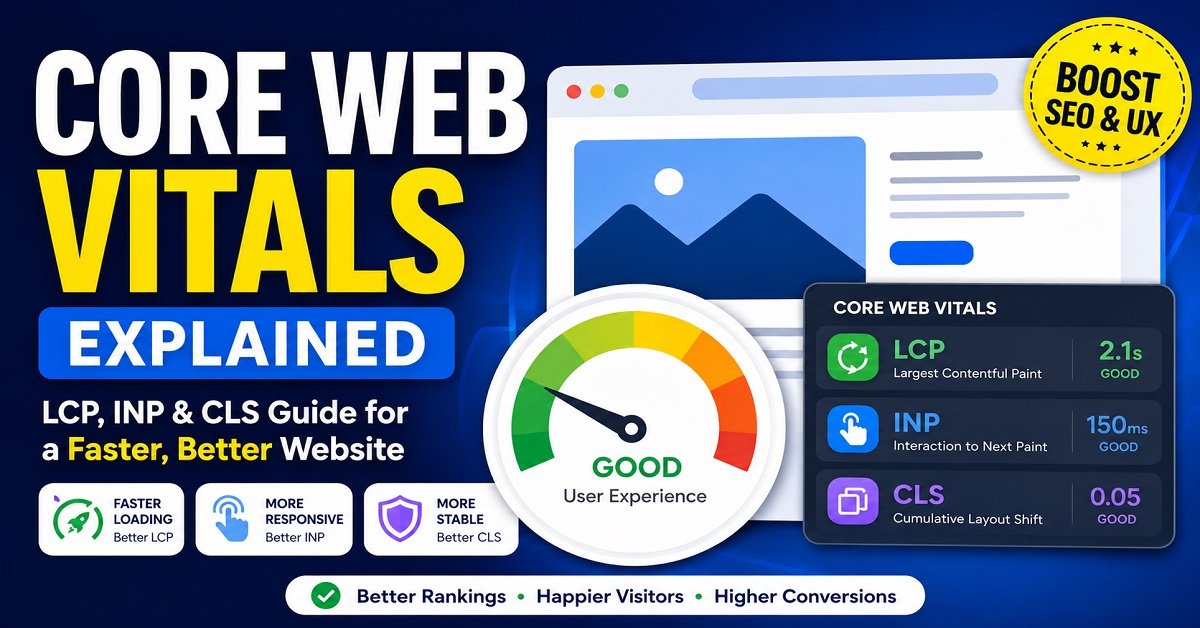
You may have heard that your website needs to be fast, especially if you want it to perform well in Google Search. But once you open PageSpeed Insights or Google Search Console, you may suddenly see terms such as LCP, INP, CLS, field data and lab data.
It can get confusing very quickly.
The good news is that you don’t need to be a web developer to understand Core Web Vitals. These metrics are basically Google’s way of measuring three important parts of a visitor’s experience: how quickly the main content loads, how quickly the page responds to interactions, and whether the page stays visually stable.
So, what are Core Web Vitals, what scores should you aim for, and what can you actually do if your website is failing them?
In this guide, we’ll explain LCP, INP and CLS in simple language, show you the current good, needs-improvement and poor thresholds, explain how to check your website, and cover practical ways to improve Core Web Vitals, including tips that are useful for WordPress websites.
By the end, you should be able to look at a Core Web Vitals report and understand what the numbers are actually telling you.
What Are Core Web Vitals?
Core Web Vitals are a set of metrics used to measure important aspects of the real-world experience people have when using a web page.
The current Core Web Vitals focus on three areas:
- Loading performance
- Responsiveness
- Visual stability
Google currently uses these three metrics:
- LCP (Largest Contentful Paint) for loading performance
- INP (Interaction to Next Paint) for responsiveness
- CLS (Cumulative Layout Shift) for visual stability
You can think of them as three simple questions.
LCP
“How quickly does the main content appear?”
INP
“How quickly does the page respond when I interact with it?”
CLS
“Does the page stay in place, or does everything unexpectedly move around?”
That’s the basic idea.
You don’t need to understand the technical calculations to understand why these metrics matter.
Imagine you visit a website on your phone.
The page takes five seconds before the main article becomes visible.
Then you tap the menu, but nothing happens for half a second.
Finally, just as you are about to tap a link, an advertisement loads and pushes the content downward.
The website may technically work, but the experience is frustrating.
Core Web Vitals are designed to help website owners identify problems like these.
Core Web Vitals at a Glance
Here are the current thresholds you should know.
| Metric | Full Name | What It Measures | Good | Needs Improvement | Poor |
|---|---|---|---|---|---|
| LCP | Largest Contentful Paint | Loading performance | ≤ 2.5 sec | 2.5 to 4 sec | > 4 sec |
| INP | Interaction to Next Paint | Responsiveness | ≤ 200 ms | 200 to 500 ms | > 500 ms |
| CLS | Cumulative Layout Shift | Visual stability | ≤ 0.1 | 0.1 to 0.25 | > 0.25 |
These are Google’s current recommended thresholds. To classify real-world performance, the metrics are generally evaluated at the 75th percentile, separated between mobile and desktop experiences.
Don’t worry if “75th percentile” sounds complicated.
We’ll explain it shortly.
The Three Core Web Vitals in Simple Words
Before getting into the technical details, remember this:
LCP = Loading
INP = Interaction
CLS = Stability
Or think about visiting a restaurant website.
You open the page.
LCP asks: How quickly did the important content appear?
You tap the menu button.
INP asks: How quickly did the website respond?
While you’re reading the menu, an image or advertisement suddenly loads and pushes everything downward.
CLS asks: How much did the page unexpectedly move?
That’s the entire concept in a simple example.
What Does “Good” Core Web Vitals Actually Mean?
You may see a website owner say:
“My Core Web Vitals are good.”
But what does that actually mean?
It doesn’t mean the website has a single score of 90 or 95.
Core Web Vitals consists of three separate metrics, and each one has its own threshold.
For example, a page could have:
- LCP: Good
- INP: Good
- CLS: Needs Improvement
In that situation, the page still has a Core Web Vitals issue.
For a page to meet the recommended targets, all three metrics should meet their respective “good” thresholds. Google recommends measuring these at the 75th percentile of page loads, segmented by mobile and desktop.
What Does the 75th Percentile Mean?
This sounds more complicated than it really is.
Suppose 100 people visit your website.
Their LCP results vary.
Some may see the main content in 1.5 seconds.
Others may take 2 seconds.
Someone using a slow mobile connection might take 3.5 seconds.
Google doesn’t simply look at your fastest visitor.
Instead, the recommended threshold is evaluated around the 75th percentile, meaning the target is intended to represent the experience of most users rather than just the fastest users.
So if your website is fast on your own computer but slow for many mobile visitors, your Core Web Vitals data can still show a problem.
This is one reason you shouldn’t judge website performance only by opening your own website on your personal laptop.
1. LCP Explained: Largest Contentful Paint
Let’s start with the first metric.
LCP stands for Largest Contentful Paint.
It measures how quickly the largest main content element visible in the user’s viewport is rendered.
In simpler words:
LCP tells you roughly how long it takes before the main content of the page becomes visible.
Google describes LCP as the render time of the largest image, text block or video visible within the viewport after the page starts loading.
Imagine This Situation
You search Google for:
“How to start a blog”
You click a result.
The page begins loading.
For the first moment, you may see a blank area, header or loading elements.
Then the main heading and large hero image appear.
LCP is concerned with when that important, largest piece of visible content becomes available.
It is therefore much more useful for understanding perceived loading speed than simply asking whether the browser technically finished loading every resource.
What Can Be the LCP Element?
The LCP element depends on the page.
It could be:
- A large hero image
- A featured image
- A large heading
- A paragraph or text block
- A video
- Another large element visible in the initial viewport
This is why the same optimization doesn’t fix LCP on every website.
For one website, the problem might be a huge featured image.
For another, it might be a slow server.
For another, it could be render-blocking CSS or JavaScript.
What Is a Good LCP Score?
Google recommends an LCP of:
2.5 seconds or less
for a good user experience.
The current ranges are:
| LCP | Result |
|---|---|
| 2.5 seconds or less | Good |
| More than 2.5 to 4 seconds | Needs Improvement |
| More than 4 seconds | Poor |
So if your LCP is 1.8 seconds, that’s good.
If it’s 3.2 seconds, it needs improvement.
If it’s 5 seconds, you have a more serious loading problem.
Why Is LCP Important?
Think about what happens when someone clicks a Google result.
They are expecting something.
Maybe they want to know:
- Which hosting plan to choose
- How to fix a WordPress problem
- Which laptop to buy
- How to start a blog
- How much a product costs
If the main content takes too long to appear, the visitor may become impatient.
They may press the back button and try another result.
A fast LCP doesn’t guarantee that the visitor will stay, but a slow LCP creates unnecessary friction before the person can even consume your content.
Google describes LCP as an important measure of perceived load speed because it indicates when the main content has likely loaded.
Common Causes of Poor LCP
There isn’t one universal reason for a poor LCP.
However, common causes include:
Large images
A large featured image or hero image can take longer to download.
This is particularly important for mobile visitors.
Slow server response
If the server takes too long to start sending the page, everything that comes after it is delayed.
Render-blocking resources
Some CSS and JavaScript can prevent the browser from displaying important content quickly.
Too many third-party resources
Analytics, advertising, social widgets, chat tools and other external scripts can add work to the loading process.
Poorly optimized fonts
Fonts can also affect how quickly important text becomes visible.
Too much unnecessary code
A heavy theme or collection of unnecessary plugins can contribute to a slower page.
The exact cause should be diagnosed rather than assuming that installing another optimization plugin will automatically fix it.
How Can You Improve LCP?
The right solution depends on what’s causing the delay.
But these are good places to start:
Optimize your main images
Compress large images before uploading them.
Use modern image formats where appropriate and avoid uploading a 2 MB image when a much smaller file would look just as good.
Use the correct image dimensions
Don’t upload a massive image and rely on CSS to display it at a tiny size.
Use dimensions appropriate for the actual display area.
Improve server response time
A slow server can delay the entire loading process.
Caching, a suitable hosting plan and a CDN can help depending on your setup.
Reduce unnecessary resources
Don’t load scripts, styles and plugins that your website doesn’t actually need.
Optimize critical CSS and JavaScript
This is more technical, but reducing resources that block important content can improve loading performance.
Be careful with your featured image
For content websites and blogs, the featured image is often near the top of the page.
If that image becomes the LCP element, its size and loading behavior can have a noticeable impact.
Google’s LCP optimization guidance recommends identifying the different stages contributing to LCP rather than simply assuming that the image itself is always the problem.
2. INP Explained: Interaction to Next Paint
The second Core Web Vital is INP, or Interaction to Next Paint.
This metric measures how responsive a page is when a visitor interacts with it.
Google defines INP around the latency of interactions throughout a user’s visit, rather than looking only at the initial page load.
This is important because a website can load quickly but still feel slow.
Here’s an Example
You open a website.
Everything appears quickly.
The page looks fast.
Then you tap the hamburger menu.
Nothing happens immediately.
You tap again.
Still nothing.
Finally, the menu opens.
The website loaded quickly, but it didn’t respond quickly.
That’s the type of problem INP is designed to help identify.
Why Did Google Move From FID to INP?
If you’ve read older SEO articles about Core Web Vitals, you may have seen FID, or First Input Delay.
That’s because FID used to be one of the Core Web Vitals.
However, INP replaced FID as the Core Web Vital for responsiveness in March 2024.
INP provides a broader view of interaction responsiveness because it considers interactions throughout the page’s lifetime rather than focusing on the first interaction.
So if you’re reading an old article that says the three Core Web Vitals are:
- LCP
- FID
- CLS
that information is outdated.
The current set is:
- LCP
- INP
- CLS
What Counts as an Interaction?
An interaction can include things such as:
- Clicking a button
- Tapping a menu
- Opening a search box
- Selecting a dropdown
- Submitting a form
- Interacting with a page element
Not every page has the same number of interactions.
A simple blog article may have very few.
An online application could have hundreds.
That’s one reason INP can be more relevant to interactive websites than to a basic text-heavy page.
What Is a Good INP Score?
Google’s current thresholds are:
| INP | Result |
|---|---|
| 200 ms or less | Good |
| More than 200 to 500 ms | Needs Improvement |
| More than 500 ms | Poor |
Milliseconds are very small units of time.
For context:
1,000 milliseconds = 1 second.
So 200 ms is only 0.2 seconds.
You don’t need to manually calculate this, though. Your performance tools will report the value for you.
What Causes Poor INP?
INP problems are often connected to JavaScript.
When you click something on a website, the browser may need to perform several tasks before it can visually respond.
If the browser is busy doing heavy work, your interaction may feel delayed.
Common causes include:
- Too much JavaScript
- Long-running JavaScript tasks
- Heavy third-party scripts
- Complex page interactions
- Poorly optimized event handlers
- Excessive browser work
For a WordPress website, unnecessary plugins and third-party scripts can sometimes contribute to this problem.
That doesn’t mean you should blindly delete plugins.
It means you should understand what each plugin adds to your website and whether you actually need it.
How Can You Improve INP?
For beginners, start with the simplest changes.
Remove unnecessary plugins
Every plugin isn’t automatically bad.
But if you have five plugins performing functions you don’t use, they are worth reviewing.
Reduce third-party scripts
Chat widgets, social tools, advertising scripts and other external services can add browser work.
Only use the services that provide real value.
Keep your theme lightweight
A simple website often has less unnecessary JavaScript than a heavily customized one.
Optimize interactive features
If you’re a developer, you may need to optimize JavaScript execution, event handlers and long tasks.
This is where INP becomes more technical.
For non-developers, the most practical approach is often to identify unnecessary scripts and functionality before trying advanced JavaScript optimization.
Google’s guidance recommends using real-user data to identify slow interactions and then using development tools to diagnose what’s causing the delay.
3. CLS Explained: Cumulative Layout Shift
The third Core Web Vital is CLS, or Cumulative Layout Shift.
This one is probably the easiest to understand.
CLS measures visual stability.
In other words:
Does the page stay where it appears, or do elements unexpectedly move while you’re using it?
Here’s a Common Example
Imagine you’re reading an article on your phone.
You see a button that says:
Read More
You move your finger toward it.
Suddenly an image loads above the button.
The button moves downward.
You tap.
But because the button moved, you accidentally tap something else.
That’s a layout shift.
Google describes unexpected layout shifts as a frustrating experience because they can make users lose their place while reading or even click the wrong element.
What Is a Good CLS Score?
CLS is different from LCP and INP because it isn’t measured in seconds or milliseconds.
It’s a unitless score.
Google recommends:
| CLS | Result |
|---|---|
| 0.1 or less | Good |
| More than 0.1 to 0.25 | Needs Improvement |
| More than 0.25 | Poor |
A lower CLS is better.
So:
0.05 is better than 0.15.
And:
0 is ideal from a layout-shift perspective.
What Causes Poor CLS?
Some of the most common causes are surprisingly simple.
Images without dimensions
If the browser doesn’t know how much space an image will need before the image loads, surrounding content can move when the image appears.
Ads
Ads can cause layout shifts if space isn’t properly reserved for them.
Embeds
Videos, social media embeds and other external content can shift the page if their space isn’t defined ahead of time.
Dynamically added content
Content inserted into the page after the initial layout can push existing content around.
Web fonts
Font loading can sometimes contribute to visual changes depending on how the page is configured.
Google specifically identifies images without dimensions, ads, embeds, dynamically injected content and web fonts among common causes of CLS problems.
Why CLS Matters for Bloggers
CLS is particularly important for content websites.
Imagine that someone is reading a 2,000-word article.
They are already several paragraphs down the page.
Then an advertisement or image loads and changes the layout.
The reader has to find their place again.
This may seem like a small inconvenience.
But repeated small frustrations can make a website feel poorly built.
And if a layout shift causes someone to click the wrong button, the problem becomes more serious.
How Can You Improve CLS?
Set image dimensions
Make sure images have defined width and height or otherwise reserve the correct space before they load.
Reserve space for advertisements
If you display ads, don’t allow them to suddenly push the article downward when they load.
Give embeds predictable dimensions
Videos and other embeds should have an appropriate area reserved for them.
Be careful with dynamically inserted content
Avoid inserting content above existing content after the page has already started displaying.
Handle fonts properly
Make sure your font-loading strategy doesn’t cause noticeable layout changes.
These fixes are often more straightforward than INP optimization because you can visually observe many CLS problems yourself.
LCP vs INP vs CLS: What’s the Difference?
If you remember nothing else from this article, remember this table.
| Core Web Vital | Think About It As | Simple Question |
|---|---|---|
| LCP | Loading | “Did the main content appear quickly?” |
| INP | Responsiveness | “Did the page respond quickly when I interacted?” |
| CLS | Stability | “Did everything stay where it should?” |
A simple website can therefore have three different problems.
It might load slowly but respond quickly once loaded.
It might load quickly but have slow buttons and menus.
Or it might load and respond quickly but have content that jumps around.
That’s why Core Web Vitals uses three different metrics rather than one overall speed measurement.
Why Core Web Vitals Matter Beyond Google
It is tempting to think of Core Web Vitals as just another SEO requirement.
That misses the bigger picture.
These metrics are fundamentally connected to the experience of your visitors.
A person doesn’t care whether your LCP is 2.4 seconds or 2.6 seconds.
They care whether your website feels fast.
They don’t care that your INP is 180 ms.
They care that the menu opens when they tap it.
They don’t care that your CLS is 0.05.
They care that the page doesn’t jump around while they are trying to read.
Google itself recommends achieving good Core Web Vitals for both Search success and a generally better user experience.
So the best reason to improve Core Web Vitals isn’t simply:
“Google wants it.”
It is:
“My visitors deserve a website that works well.”
And that mindset will help you make better optimization decisions throughout the rest of your website.
Core Web Vitals vs PageSpeed Insights: They Are Not the Same Thing
One of the biggest sources of confusion for website owners is the relationship between Core Web Vitals and PageSpeed Insights.
You may run your homepage through PageSpeed Insights and see a performance score of 95.
Then you open Google Search Console and discover that some pages have poor Core Web Vitals.
So which one is correct?
Both can be correct because they measure different things.
PageSpeed Insights can provide both lab data from a controlled test and field data based on real Chrome users when enough data is available. Google Search Console’s Core Web Vitals report, on the other hand, is based on real-world usage data and groups similar URLs together.
This distinction is important because you should not spend hours trying to fix a lab score while ignoring what real visitors are experiencing.
Core Web Vitals vs PageSpeed Score
Let’s make the difference simple.
| Core Web Vitals | PageSpeed Insights |
|---|---|
| Focuses on LCP, INP and CLS | Provides a broader performance analysis |
| Uses real-user data when looking at field data | Can show both lab and field data |
| Helps understand actual visitor experience | Helps diagnose possible performance problems |
| Uses specific thresholds | Provides a Lighthouse performance score |
| Not a single score | Gives a score from 0 to 100 for the lab Performance category |
The PageSpeed Performance score is not your Core Web Vitals score.
A website can have a high PageSpeed score and still have a Core Web Vitals problem.
Likewise, a lower lab performance score doesn’t automatically mean that all your real users are experiencing poor Core Web Vitals.
That is why you need to understand both types of data.
What Is Lab Data?
Lab data is produced by running your webpage through a controlled test environment.
It is useful because you can reproduce a test and investigate what is slowing down a page.
For example, Lighthouse can identify potential problems related to:
- Images
- JavaScript
- CSS
- Fonts
- Network requests
- Rendering
- Unused resources
- Long tasks
This makes lab testing particularly useful when you’re trying to diagnose a problem.
However, the test isn’t the same as having thousands of actual visitors use your website.
The device, network conditions and test environment are controlled.
What Is Field Data?
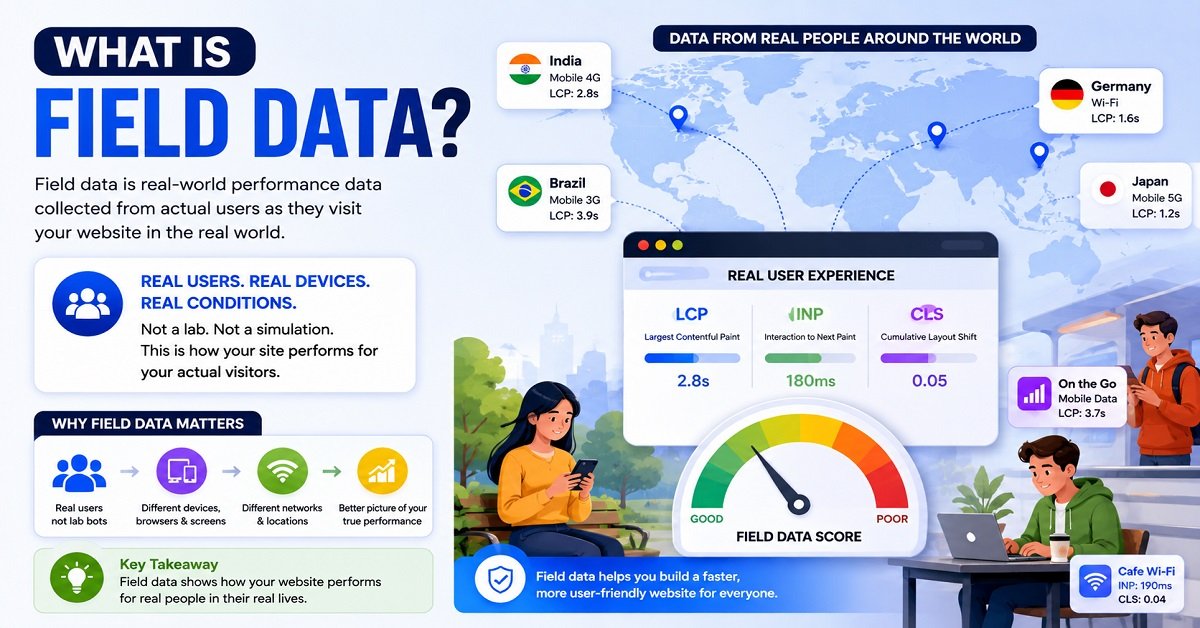
Field data comes from real users experiencing your website in the real world.
This means visitors may be using:
- Different smartphones
- Different computers
- Different browsers
- Different internet connections
- Different geographic locations
- Different screen sizes
Google’s Chrome User Experience Report, commonly called CrUX, provides aggregated real-user performance data for eligible websites. Search Console uses real-world data to show how URL groups are performing for LCP, INP and CLS.
This is valuable because your website may behave very differently for a visitor on a fast desktop connection compared with someone using an older phone on a slower mobile network.
Why Lab and Field Data Can Be Different
This is completely normal.
Imagine that you test your website from a powerful desktop computer on a fast broadband connection.
The result looks excellent.
But many of your visitors are coming from mobile devices using slower networks.
Their experience could be quite different.
There are other reasons too.
For example, field users may scroll through the page, interact with menus, open popups or trigger content that wasn’t part of the basic lab test.
Google’s web performance guidance notes that lab and field data can differ because real users interact with pages in ways that controlled tests may not reproduce.
A Good Example: CLS
Suppose an image lower down your article doesn’t have its dimensions properly reserved.
A Lighthouse test may never scroll far enough to trigger the problem.
A real visitor reads your article, scrolls down, and then the image loads and pushes the content around.
That layout shift can appear in field data even though your basic lab test didn’t catch it.
Google specifically notes that field CLS can include unexpected shifts that happen later as users scroll, while a standard lab test may focus mainly on the initial page load.
This is why real-user data should not be ignored.
How to Check Core Web Vitals
You don’t need expensive software to get started.
There are several useful tools available.
1. Google Search Console
If you own a website, this should be one of your first places to check.
Google Search Console has a Core Web Vitals report that shows how your indexed pages perform based on real-world usage data.
It groups URLs into:
- Poor
- Needs Improvement
- Good
and separates the results by:
- LCP
- INP
- CLS
It also groups similar URLs rather than displaying every page as an entirely separate performance report.
This is useful when you want to answer:
“Are there performance problems affecting multiple pages on my website?”
How to Find the Report
In Google Search Console:
- Open your website property.
- Go to the Core Web Vitals report.
- Select Mobile or Desktop.
- Look for URLs marked Poor or Needs Improvement.
- Check which metric is causing the problem.
- Open example URLs from the affected group.
- Test those pages individually.
Don’t panic if you see a large number of affected URLs.
Because Search Console groups similar pages, fixing the underlying template or common issue can sometimes improve many URLs at once.
2. PageSpeed Insights
PageSpeed Insights is particularly useful when you want to investigate a specific page.
You enter a URL and receive performance information along with recommendations.
One of its useful features is that it can show both:
Real-user field data, when available, and
Lab data, generated during the test.
This makes PageSpeed Insights useful for both checking the visitor experience and investigating possible causes.
For example, suppose your real-user LCP is poor.
You can use the lab portion of the report to investigate whether the page has:
- A large LCP image
- Slow server response
- Render-blocking resources
- Too much JavaScript
- Other loading problems
Google’s guidance recommends using field data to understand whether users are experiencing a problem and lab tools to help diagnose the underlying causes.
3. Lighthouse
Lighthouse is another useful performance auditing tool available through Chrome and other Google developer tools.
It can help developers investigate:
- Performance
- Accessibility
- Best practices
- SEO
- Other technical aspects of a webpage
For a beginner, you don’t need to understand every Lighthouse recommendation.
Focus first on the issues that have a meaningful effect on your actual website experience.
How to Read a Core Web Vitals Report
Let’s say Search Console shows this:
| Metric | Status |
|---|---|
| LCP | Good |
| INP | Good |
| CLS | Poor |
What does that tell you?
Your page is loading reasonably well and responding properly, but something is causing unexpected layout movement.
You should therefore investigate CLS, rather than spending your time trying to improve LCP from 2.1 seconds to 1.8 seconds.
This sounds obvious, but it is an easy mistake to make.
Website owners sometimes optimize whatever number looks easiest to improve rather than fixing the metric that is actually causing the problem.
Fix the Actual Problem, Not the Score
Suppose your website has:
LCP: 2.4 seconds
INP: 180 ms
CLS: 0.35
Your LCP and INP are already within the good thresholds.
Trying to reduce LCP from 2.4 to 2.0 seconds may produce a nice-looking improvement, but your biggest problem is still CLS.
You should investigate why the page is moving around.
For example:
- Is an image missing dimensions?
- Is an advertisement changing the layout?
- Is an embedded video pushing content downward?
- Is a popup appearing above the article?
- Is some JavaScript inserting content unexpectedly?
That is a much more sensible optimization strategy.
How to Fix Core Web Vitals on WordPress
WordPress makes building a website much easier, but it also makes it easy to add too much.
You install a plugin for one feature.
Then another plugin for another feature.
Then a page builder.
Then an analytics script.
Then a social widget.
Then advertisements.
Eventually, the browser has much more work to do.
That doesn’t mean WordPress is inherently slow.
It means what you add to WordPress matters.
1. Choose a Lightweight Theme
Your theme affects the HTML, CSS and JavaScript loaded by your pages.
A lightweight theme can reduce unnecessary work.
This doesn’t mean you need the absolute simplest-looking website.
It means you should avoid loading large amounts of functionality that you don’t actually use.
If you only need a blog layout, there is little reason to use a theme packed with dozens of animations and interactive components that aren’t part of your site.
For more information about the wider WordPress setup, you can also read our How to Build a WordPress Website guide.
2. Optimize Images
Images are particularly important for content websites.
A blog article may contain:
- Featured images
- Product images
- Screenshots
- Diagrams
- In-post graphics
Uploading every image at maximum resolution can unnecessarily increase page weight.
Instead:
- Resize images appropriately
- Compress them
- Use modern formats when suitable
- Avoid unnecessarily large files
- Serve images at dimensions appropriate for the display area
But be careful with lazy loading.
Your most important above-the-fold image may become the LCP element.
You don’t want to delay an important LCP image unnecessarily.
Google’s LCP guidance emphasizes making the LCP resource discoverable and allowing the browser to load it early enough.
3. Use Caching
Caching allows certain resources or generated page content to be reused rather than recreated or downloaded unnecessarily.
For a WordPress website, caching can reduce server work and improve loading performance.
Depending on your hosting and setup, you may have options such as:
- Page caching
- Browser caching
- Object caching
- CDN caching
The right configuration depends on your website.
Don’t simply enable every optimization option in a caching plugin.
Some aggressive settings can create problems of their own.
4. Reduce Unnecessary Plugins
This doesn’t mean:
“Plugins are bad.”
Plugins are one of the reasons WordPress is so flexible.
The problem is unnecessary functionality.
If a plugin adds scripts to every page but you only use its feature on one page, it may be worth looking at whether those scripts can be limited.
Also review plugins you installed months ago but no longer use.
A good rule is:
If a plugin doesn’t provide enough value to justify its performance or maintenance cost, reconsider keeping it.
5. Reduce Third-Party Scripts
Third-party scripts can come from:
- Advertising
- Analytics
- Social media
- Chat widgets
- Tracking services
- Affiliate tools
- Video players
- Marketing platforms
Some are useful.
Some are essential.
Some are simply nice to have.
The more third-party code you load, the more work the browser may need to perform.
This can affect both loading and responsiveness.
Google’s web performance guidance also notes that advertising scripts can affect LCP, INP and CLS, depending on how they are loaded and how much work they create.
So don’t automatically remove every third-party script.
Instead, ask:
Does this script provide enough value to justify its cost?
6. Be Careful With Advertisements
Advertisements deserve special attention.
Ads can affect performance because they may require additional network requests, JavaScript execution and layout space.
They can also create CLS problems when the browser doesn’t know how much space an ad will occupy.
For example, imagine this:
- Your article loads.
- The visitor sees the heading.
- An ad request finishes.
- The ad appears.
- The article moves downward.
That movement contributes to a poor experience.
Reserving appropriate space for ads can reduce this type of layout shift. Google specifically recommends reserving space for dynamically loaded ad content to avoid unexpected movement.
If you use ads, don’t look at them only from a revenue perspective.
Consider the experience of the person trying to read the page.
7. Give Images and Embeds Space
This is one of the simplest CLS fixes.
If the browser knows that an image will occupy a particular area, it can reserve that space before the image finishes downloading.
Without that information, the browser may initially render the surrounding content and then move it when the image appears.
The same principle applies to:
- Videos
- Iframes
- Advertisements
- Other dynamic content
Google recommends reserving space for images and other content to reduce unexpected layout shifts.
8. Don’t Overuse Popups
Popups can be useful.
A newsletter popup may increase subscriptions.
An affiliate disclosure or cookie notice may be necessary.
But a website that immediately displays multiple overlays can create a poor experience.
Popups can also contribute to layout problems if they are inserted into the normal page flow rather than displayed in a way that doesn’t push existing content around.
Use them carefully.
9. Optimize JavaScript
This becomes more technical.
JavaScript can affect INP because the browser may need to execute JavaScript before it can respond to an interaction.
Long-running tasks can delay interactions.
For developers, improving INP can involve:
- Breaking up long tasks
- Reducing unnecessary JavaScript
- Optimizing event handlers
- Reducing DOM complexity
- Deferring non-critical work
- Moving suitable work off the main thread
Google’s INP optimization guidance recommends identifying slow interactions in field data and then diagnosing the responsible JavaScript or rendering work.
For a non-developer, don’t start modifying JavaScript files blindly.
First identify which script or plugin is causing the problem.
Core Web Vitals and Affiliate Websites
If you run an affiliate website, Core Web Vitals deserve extra attention.
Affiliate sites often contain more elements than a basic blog article.
For example, you might have:
- Product images
- Comparison tables
- Affiliate buttons
- Product boxes
- Amazon links
- Embedded videos
- Advertisements
- Tracking scripts
- Review widgets
All of these can potentially affect the page experience.
That doesn’t mean you should remove useful elements.
The goal is to make the page useful without making it unnecessarily heavy.
For example, if a product box helps a reader compare price, features and buying options, it may be worth keeping.
But if you have three different widgets providing almost the same information, removing the unnecessary ones may improve both usability and performance.
The same principle applies to advertisements.
You want to balance monetization with the reader’s ability to actually consume the content.
Core Web Vitals Can Influence Conversions Indirectly
Be careful with claims here.
A good Core Web Vitals result doesn’t automatically mean:
“You will earn more affiliate commissions.”
That’s too simplistic.
However, website performance can influence the overall user experience.
Imagine two affiliate websites.
The first:
- Loads quickly
- Has readable content
- Doesn’t jump around
- Responds when buttons are tapped
- Makes product information easy to find
The second:
- Loads slowly
- Moves content around
- Has intrusive popups
- Takes time to respond
- Makes visitors wait before they can read
Even without knowing their exact conversion rates, it’s easy to see which experience is more pleasant.
So performance optimization should be viewed as one part of conversion optimization, not a magic ranking or sales button.
Why Your Core Web Vitals Can Change Even If You Didn’t Change Your Website
This surprises many website owners.
You may look at your website today and think:
“I haven’t changed anything. Why did my Core Web Vitals become worse?”
Because your visitors changed.
Real-world data reflects the conditions under which people actually access your website.
Your visitors may now be using:
- Different phones
- Different browsers
- Slower networks
- Different screen sizes
- Different geographic locations
Even the content visible in the viewport can differ between users.
For example, Google notes that the LCP element can vary between users because screen resolutions, page layouts, loading positions and personalized content can differ.
This is one reason field data shouldn’t be treated as a fixed laboratory measurement.
Your website is being experienced by thousands of different combinations of hardware, software and network conditions.
Don’t Panic About Small Changes
Core Web Vitals can fluctuate.
A small change in a metric doesn’t necessarily mean that something has suddenly broken.
Instead, look for a meaningful pattern.
For example:
Yesterday: Good
Today: Good
Next week: Good
That’s very different from:
Last month: Good
This month: Needs Improvement
Several weeks later: Poor
The second situation deserves investigation.
Look at trends rather than obsessing over every small daily change.
What Should You Fix First?
If your website has problems with all three metrics, don’t try to fix everything simultaneously.
A sensible approach is:
First: Identify the worst problem
Look at Search Console or field data.
Second: Find the affected page type
Is the problem happening mainly on:
- Blog posts?
- Product pages?
- Category pages?
- Homepage?
- Mobile pages?
Third: Find the common cause
If 100 blog posts have similar problems, there may be a common theme, plugin, image or template issue.
Fourth: Fix the underlying issue
Don’t manually optimize 100 pages if one template change can solve the problem.
Fifth: Test again
Use PageSpeed Insights or other diagnostic tools to see whether the change helped.
Sixth: Watch field data
Real-user data takes time to reflect changes.
Don’t expect Search Console to immediately change the moment you save a WordPress setting.
A Practical Core Web Vitals Checklist
Here’s a simple checklist you can use when working on your website.
For LCP
- Optimize large images
- Check the LCP element
- Improve server response time
- Reduce unnecessary render-blocking resources
- Avoid unnecessary third-party scripts
- Make important content discoverable early
- Use caching appropriately
For INP
- Reduce unnecessary JavaScript
- Review third-party scripts
- Remove unnecessary interactive features
- Check slow buttons and menus
- Reduce long-running JavaScript tasks
- Keep the page structure reasonably simple
For CLS
- Define image dimensions
- Reserve space for advertisements
- Reserve space for embeds
- Avoid inserting content above existing content
- Check web font behavior
- Test the page while scrolling
- Check for late-loading elements
What About Mobile Core Web Vitals?
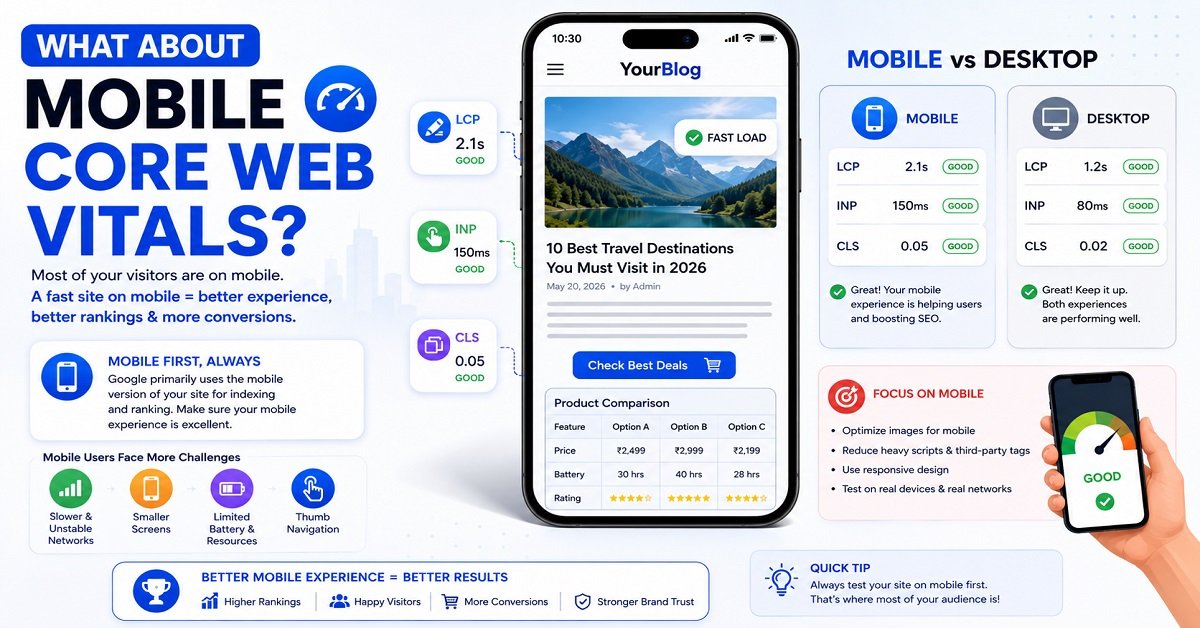
Mobile performance deserves special attention.
Many websites receive a large portion of their visitors from smartphones.
A desktop computer with a fast processor and broadband connection can hide performance problems that become obvious on a mobile device.
A page with heavy JavaScript might feel fine on your computer but sluggish on an older smartphone.
A large image may load quickly on Wi-Fi but slowly on a mobile connection.
A layout that looks stable on desktop might behave differently on a narrow screen.
That’s why you should check both mobile and desktop performance rather than assuming that a good desktop result means everything is fine.
Google’s Core Web Vitals reporting separates mobile and desktop experiences, which helps reveal these differences.
For a blog or affiliate website, I would pay particular attention to mobile because that is often where visitors have less powerful devices and more variable network conditions.
Core Web Vitals Are Not About Making Everything Minimal
There is another common misunderstanding.
Some website owners hear about performance optimization and conclude:
“I should remove everything from my website.”
That’s not the goal.
A useful website needs features.
A blog needs images.
An affiliate site needs product information and buying links.
A business website may need forms.
A store needs product images and shopping functionality.
The goal is to make those features work efficiently.
For example, removing every image from an article might improve its loading time.
But if the images help explain the topic, the website may become less useful.
Similarly, removing every interactive element might make INP excellent, but it would also make the website less functional.
Performance optimization should improve the experience, not destroy the usefulness of the website.
That is an important principle to keep in mind before making aggressive changes.
Does Core Web Vitals Affect Google Rankings?
This is probably the question most website owners have after learning about LCP, INP and CLS.
After all, if Google is measuring these metrics, it is natural to wonder:
“If my Core Web Vitals are poor, will my website lose rankings?”
The answer is yes, Core Web Vitals are part of Google’s page experience considerations, but passing Core Web Vitals does not guarantee higher rankings.
Google itself recommends achieving good Core Web Vitals for Search success and a better overall user experience. At the same time, Google makes it clear that good Core Web Vitals scores alone do not guarantee good rankings. Its ranking systems consider many signals, and relevant, helpful content can still rank even when page experience isn’t perfect.
This distinction is important.
You should improve Core Web Vitals, but you shouldn’t sacrifice useful content just to chase a perfect performance score.
Core Web Vitals Are One Part of a Bigger Picture
Imagine two websites competing for the same search query.
Website A
- Excellent Core Web Vitals
- Very fast loading
- Good mobile experience
- But thin, generic content that doesn’t properly answer the question
Website B
- Good but not perfect Core Web Vitals
- Slightly slower
- But provides detailed, accurate and genuinely useful information
You shouldn’t assume Website A will automatically outrank Website B.
Google’s systems are designed to show relevant and helpful results. Page experience is one part of that larger picture. Google specifically says there is no single “page experience signal” that determines rankings.
So think of Core Web Vitals as an important part of building a good website, not a shortcut to the top of Google.
Should You Fix Core Web Vitals Before SEO?
Not necessarily.
If your website has:
- Poor content
- Weak search intent
- No useful information
- Poor internal linking
- Unclear navigation
- Missing important topics
then spending several weeks trying to improve LCP by 200 milliseconds probably isn’t the best use of your time.
On the other hand, if your content is already useful and your website has obvious performance problems, fixing those problems makes sense.
A sensible order is:
Useful content → Good website structure → Mobile usability → Performance optimization → Continuous improvement
Performance is important, but it isn’t the only thing that makes a website successful.
Core Web Vitals vs Page Experience
Core Web Vitals are not the same thing as overall page experience.
A good page experience also involves other aspects of the website.
Google’s current page-experience guidance encourages website owners to look at the overall experience, including Core Web Vitals, secure delivery, mobile usability, avoiding excessive intrusive ads or interstitials, and making the main content easy to distinguish.
You can therefore have excellent Core Web Vitals and still have a poor website experience.
For example:
Fast website + aggressive popups + unreadable text + confusing navigation = poor experience
Likewise:
Fast website + clear navigation + readable content + useful information = much better experience
This is why optimizing only LCP, INP and CLS isn’t enough.
How Long Does It Take for Core Web Vitals to Improve?
This is another common source of frustration.
You fix your website today.
Then you open Search Console tomorrow.
Nothing has changed.
You wonder:
“Did the fix work?”
Not necessarily.
There can be a delay between making a change and seeing its effect in field data.
Remember that field data represents real users over time.
If your website receives visitors using different devices, browsers and networks, Google needs enough new data to reflect those experiences.
So don’t expect Search Console to update instantly after changing a WordPress setting.
Lab Results Can Change Quickly
If you make a change and immediately run the page through PageSpeed Insights, you may see a difference in the lab test fairly quickly.
That’s useful for checking whether your change appears to have helped.
But field data is different.
You need real visitors to experience the updated page.
This is why it is useful to think of optimization as a process rather than:
Change something → refresh Search Console → celebrate
Instead:
Identify → change → test → monitor → verify
What If Your Website Has Poor Core Web Vitals?
Don’t panic.
A poor result is useful information.
It tells you that something about the user experience needs investigation.
The first thing you should not do is install five optimization plugins at once.
That can make troubleshooting much harder.
Instead, follow a structured process.
Step 1: Find the Problematic Metric
Is the problem:
- LCP?
- INP?
- CLS?
- More than one?
Don’t treat all three as the same problem.
Step 2: Identify the Affected Page Type
Look at your Search Console report.
Are the affected URLs mainly:
- Blog posts?
- Product pages?
- Homepage?
- Category pages?
- Landing pages?
If many pages have the same problem, look for something they share.
Step 3: Test an Example URL
Take one representative page and test it using PageSpeed Insights.
Look at the field data first if it is available.
Then use the lab diagnostics to investigate possible causes.
Step 4: Find the Common Cause
For example:
Many blog posts have poor LCP
Possible common causes:
- Large featured images
- Slow server
- Heavy theme
- Render-blocking resources
Or:
Many pages have poor CLS
Possible causes:
- Images without dimensions
- Ads
- Embeds
- Dynamic content
Or:
Many pages have poor INP
Possible causes:
- Excessive JavaScript
- Third-party scripts
- Heavy interactive features
Step 5: Fix One Problem at a Time
If you change ten things simultaneously, you won’t know which change helped.
Make a meaningful change.
Test it.
Then move to the next problem.
Core Web Vitals for WordPress: A Practical Approach
WordPress gives you a lot of control, which is useful.
But it also means there are many possible sources of performance problems.
Your website’s performance can be influenced by:
- Hosting
- Theme
- Plugins
- Images
- Fonts
- CSS
- JavaScript
- Ads
- Analytics
- CDN
- Caching
- Embedded content
That’s why there isn’t a single “best Core Web Vitals plugin.”
A caching plugin can help with certain problems.
An image optimization plugin can help with images.
A CDN can help with delivery.
But none of these can automatically fix every Core Web Vital.
Don’t Install Plugins Just Because They Mention Core Web Vitals
You may find plugins promising:
“Fix Core Web Vitals with one click.”
Be cautious.
Core Web Vitals measure different things.
A plugin may improve caching but have little effect on a JavaScript-heavy INP problem.
Another may optimize images but do nothing about CLS caused by advertisements.
Another may minify files but create compatibility problems with your theme.
The correct approach is:
Diagnose first, optimize second.
What Should a Beginner Fix First?
If you’re not a developer, don’t start with advanced JavaScript optimization.
Start with the problems you can understand and control.
For LCP
Start with:
- Image optimization
- Hosting performance
- Caching
- Reducing unnecessary plugins
- Reducing unnecessary third-party resources
For INP
Start with:
- Removing unnecessary scripts
- Reviewing plugins
- Reducing third-party widgets
- Removing unnecessary interactive features
For CLS
Start with:
- Setting image dimensions
- Reserving advertisement space
- Reserving space for embeds
- Checking dynamic elements
- Checking fonts
These simple changes can sometimes address significant problems without touching complicated code.
A Note About Hosting
Hosting can affect website performance, but don’t assume that buying the most expensive hosting plan will automatically solve Core Web Vitals.
Your server is only one part of the process.
Imagine your server responds quickly, but your page contains:
- A huge hero image
- Several third-party scripts
- Multiple advertising networks
- Heavy JavaScript
- Unoptimized fonts
- Large embedded videos
The server can be fast while the page is still slow.
The opposite can also happen.
A lightweight website on a slow server can have a poor initial response time.
So when investigating LCP, consider the entire loading process, not just your hosting provider.
If you’re researching hosting for your website, our [Best Web Hosting for Bloggers] guide can help you understand what to look for before choosing a hosting plan.
Is a CDN Necessary for Good Core Web Vitals?
Not necessarily.
A CDN can be useful, particularly when your visitors are geographically distributed or when you want to serve cached static resources closer to users.
But a CDN isn’t a magic solution.
If the main problem is:
- Huge images
- Excessive JavaScript
- Poorly configured ads
- Layout shifts
- Heavy plugins
a CDN won’t automatically solve those problems.
Think of a CDN as one tool in your performance toolkit, not the entire toolkit.
Should You Aim for a 100 PageSpeed Score?
No.
This is one of the most important things I would tell a website owner.
A PageSpeed score of 100 looks impressive.
But it isn’t the actual goal.
Google’s own guidance says that website owners shouldn’t spend their time chasing perfect scores purely for SEO. The goal is to provide a good experience for users.
Imagine you have two websites.
Website A
PageSpeed score: 100
But:
- The article is difficult to read
- Navigation is confusing
- There are intrusive popups
- Important information is missing
Website B
PageSpeed score: 92
But:
- Content is excellent
- Pages load quickly
- Navigation is simple
- Mobile experience is good
- Images are useful
- Readers can easily find answers
I would much rather run Website B.
A performance score is a diagnostic indicator.
It isn’t the purpose of your website.
What Is More Important Than a Perfect Performance Score?
If you are running a blog, don’t forget the fundamentals.
Your priorities should include:
Helpful content
Answer the question the visitor came to your website to answer.
Clear navigation
Help people find related information.
Good readability
Use headings, short paragraphs, tables and images where they genuinely help.
Mobile usability
Make sure the website works properly on smaller screens.
Trust
Show who is behind the website and provide accurate information.
Security
Use HTTPS and keep WordPress, themes and plugins updated.
Performance
Make the website fast, responsive and stable.
These things work together.
Core Web Vitals is one piece of the puzzle.
Core Web Vitals and Mobile Users
Mobile deserves special attention because a website that feels fast on your desktop may not feel fast on a phone.
Consider two visitors.
Visitor A
- Modern desktop
- Fast processor
- High-speed broadband
- Large screen
Visitor B
- Mid-range smartphone
- Mobile network
- Limited processing power
- Smaller screen
The same website can feel very different to these two people.
This is one reason Core Web Vitals uses real-world data and separates mobile and desktop experiences.
If most of your audience visits from mobile devices, don’t optimize only for your desktop computer.
Test the experience that your actual readers are having.
Core Web Vitals and Affiliate Conversions
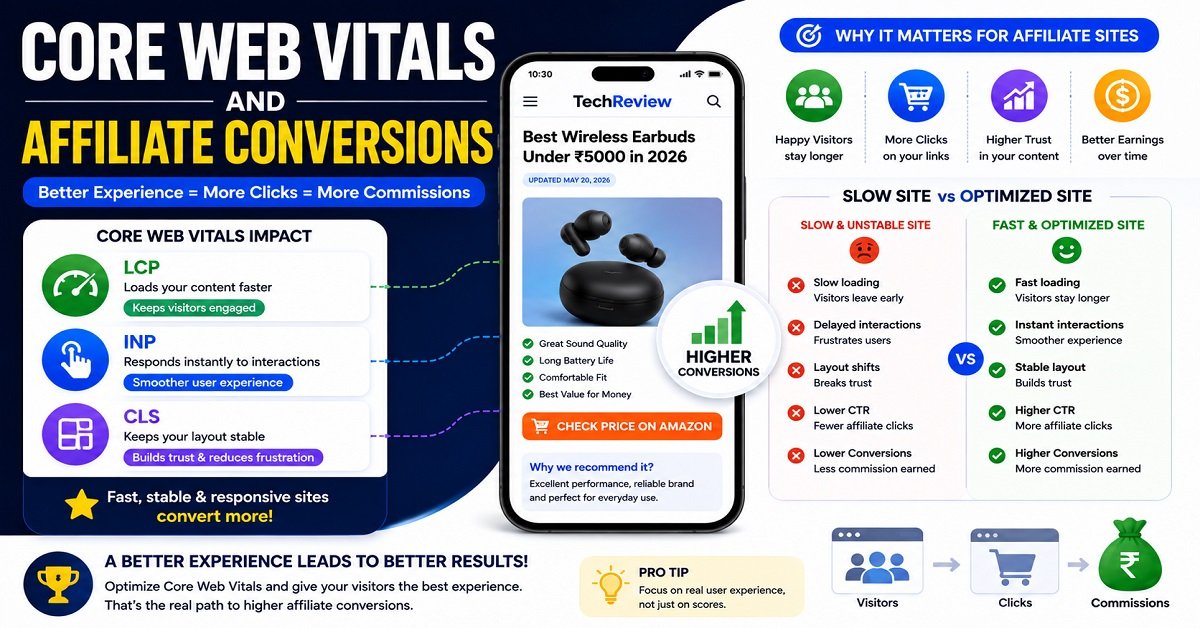
For an affiliate website, performance can become even more important because the page usually has a specific goal.
The visitor may need to:
- Read your review.
- Understand the product.
- Compare alternatives.
- Click an affiliate button.
- Continue to the merchant.
Every unnecessary obstacle can make that journey harder.
Imagine a product review where:
- The featured image takes several seconds to load.
- The product box shifts while an ad loads.
- The affiliate button doesn’t respond immediately.
- A popup covers the product comparison.
The problem isn’t just an SEO metric anymore.
It’s a poor buying experience.
Improving Core Web Vitals won’t guarantee more affiliate sales, but making the website easier to use can remove unnecessary friction from the reader’s journey.
That’s a much more useful way to think about performance.
A Simple Core Web Vitals Troubleshooting Table
| Problem | What to Check First | Possible Solution |
|---|---|---|
| Poor LCP | Main image, server response, blocking resources | Optimize image, caching, server and critical resources |
| Poor INP | JavaScript and third-party scripts | Reduce scripts and long tasks |
| Poor CLS | Images, ads, embeds, dynamic content | Reserve space before content loads |
| Good lab, poor field data | Real visitor conditions | Check mobile users and real-world data |
| Poor mobile, good desktop | Mobile resources and layout | Optimize mobile experience |
| Good CWV, low traffic | Content and search intent | Improve content and SEO |
| High PageSpeed, poor CWV | Field experience | Check Search Console and CrUX data |
This table is worth bookmarking because it gives you a starting point when something goes wrong.
What If Core Web Vitals Are Good but Your Traffic Is Falling?
Don’t immediately assume Core Web Vitals are responsible.
This is an important distinction.
Suppose your Search Console data shows:
Core Web Vitals: Good
but your organic traffic has dropped.
That doesn’t mean you should spend the next month trying to make your LCP even faster.
Your traffic can change for many reasons, including:
- Search algorithm changes
- Increased competition
- Changes in search intent
- New competitors
- Content becoming outdated
- Seasonal demand
- SERP changes
- Changes in user behavior
Google’s guidance on ranking changes recommends looking at the broader quality and relevance of your content rather than assuming every traffic change is caused by one technical factor.
This is another reason to avoid treating Core Web Vitals as the entire SEO strategy.
Core Web Vitals: What Website Owners Should Actually Remember
After all the technical terminology, the topic is actually quite simple.
LCP
Make the important content appear quickly.
INP
Make the website respond quickly when people interact with it.
CLS
Keep the page stable so content doesn’t unexpectedly move.
And then there is one more principle:
Don’t optimize these metrics at the expense of your visitors.
If removing an important image makes your LCP slightly better but makes your article harder to understand, that’s probably not a worthwhile trade.
If removing a useful comparison table makes your page lighter but makes the buying decision harder, you’re optimizing the wrong thing.
The goal is not to create the smallest possible webpage.
The goal is to create a useful webpage that loads, responds and behaves well.
Core Web Vitals Checklist for Your Website
Before moving on, here is a practical checklist you can use.
LCP checklist
- Check your main LCP element.
- Optimize large images.
- Use appropriate image dimensions.
- Improve server response time.
- Reduce unnecessary blocking resources.
- Avoid loading unnecessary third-party resources early.
- Use caching appropriately.
INP checklist
- Check for slow interactions.
- Reduce unnecessary JavaScript.
- Review third-party scripts.
- Remove unnecessary plugins and widgets.
- Reduce long-running tasks.
- Optimize interactive components.
CLS checklist
- Set image dimensions.
- Reserve space for advertisements.
- Reserve space for embeds.
- Avoid inserting content above existing content.
- Check font-loading behavior.
- Watch for late-loading elements.
Website-wide checklist
- Test mobile performance.
- Test important page types.
- Check Search Console regularly.
- Use PageSpeed Insights for individual URLs.
- Compare lab and field data.
- Fix the biggest problem first.
- Don’t chase a perfect 100 score.
One More Thing: Don’t Confuse Other Speed Metrics With Core Web Vitals
When you open a performance report, you’ll probably see several other terms.
For example:
- TTFB
- FCP
- Speed Index
- Total Blocking Time
- Time to Interactive
These can be useful.
But they are not the current Core Web Vitals.
The current Core Web Vitals are:
LCP + INP + CLS
Other metrics can help diagnose why a Core Web Vital is poor.
For example, Total Blocking Time can be useful in lab testing when investigating responsiveness issues, but it is not a Core Web Vital itself.
Similarly, TTFB can help you understand server response performance, which can influence loading, but TTFB itself is not one of the three Core Web Vitals.
This distinction becomes important when reading performance reports.
The Practical Way to Monitor Core Web Vitals
You don’t need to check your scores ten times every day.
That can quickly become an obsession.
A better routine is:
1. Check Search Console periodically
Look for meaningful changes in real-user performance.
2. Check important pages
Test your homepage, popular articles, product pages and other important templates.
3. Investigate problems
Use PageSpeed Insights and developer tools when necessary.
4. Make measured changes
Don’t change everything at once.
5. Monitor the results
Give field data enough time to reflect real-world usage.
This is much more useful than refreshing PageSpeed Insights every few hours.
When Should You Hire a Developer?
Some Core Web Vitals problems are easy to fix.
Others aren’t.
You can probably handle things such as:
- Compressing images
- Removing unused plugins
- Reserving image space
- Reviewing unnecessary widgets
- Improving basic caching
But you may need a developer when the problem involves:
- Complex JavaScript
- Custom themes
- Third-party application code
- Advanced rendering problems
- Database-related performance
- Custom plugin conflicts
- Complex dynamic interfaces
Don’t modify JavaScript or theme files simply because a performance report tells you that something is slow.
If you don’t understand what the code does, you can create a bigger problem while trying to solve a smaller one.
Measure first. Understand the cause. Then make the change.
That principle will save you a lot of trouble.
Core Web Vitals: A Practical Checklist for Website Owners
At this point, you should have a clear idea of what LCP, INP and CLS mean. The next question is what you should actually do with that knowledge.
You don’t need to become a performance engineer.
For most bloggers, website owners and affiliate marketers, a simple process is enough.
Check LCP
Ask:
- Is the main content appearing quickly?
- Is my featured image unnecessarily large?
- Is my server responding slowly?
- Are important CSS or JavaScript files delaying the page?
- Am I loading unnecessary resources before the main content?
Check INP
Ask:
- Do buttons and menus respond quickly?
- Is my website using too much JavaScript?
- Are third-party scripts doing unnecessary work?
- Do I have plugins adding scripts that I don’t really need?
- Are there slow interactions on important pages?
Check CLS
Ask:
- Do images have defined dimensions?
- Does an advertisement suddenly push content downward?
- Do videos or embeds cause the layout to move?
- Does content appear unexpectedly above something the visitor is already reading?
- Do fonts cause noticeable changes in the page layout?
These questions are often more useful than simply looking at a red or green indicator.
Core Web Vitals Optimization Checklist
You can use this as a quick reference whenever you work on your website.
| Area | What to Check | Target |
|---|---|---|
| LCP | Main content and largest visible element | 2.5 seconds or less |
| INP | Buttons, menus and other interactions | 200 ms or less |
| CLS | Unexpected movement | 0.1 or less |
| Images | Size and dimensions | Optimized and properly sized |
| JavaScript | Unnecessary scripts and long tasks | Keep under control |
| Ads | Reserved space | Avoid unexpected movement |
| Mobile | Performance on real phones | Smooth experience |
| Third-party scripts | Analytics, widgets, chat, ads | Use only when useful |
Core Web Vitals Pros and Cons
Frequently Asked Questions About Core Web Vitals
What are Core Web Vitals?
Core Web Vitals are Google’s user-focused performance metrics for measuring important aspects of a webpage experience. The current three metrics are LCP, INP and CLS, which measure loading performance, responsiveness and visual stability respectively. (developers.google.com)
What are the three Core Web Vitals?
The three current Core Web Vitals are:
LCP: Largest Contentful Paint
INP: Interaction to Next Paint
CLS: Cumulative Layout Shift
A simple way to remember them is:
LCP = Loading
INP = Responsiveness
CLS = Stability
Is FID still a Core Web Vital?
No.
FID, or First Input Delay, was replaced by INP as a Core Web Vital in March 2024. If you find an article saying that FID is still one of the three current Core Web Vitals, it is outdated. (web.dev)
What is a good LCP score?
A good LCP is 2.5 seconds or less.
An LCP between more than 2.5 and 4 seconds needs improvement, while an LCP above 4 seconds is considered poor. (developers.google.com)
What is a good INP score?
A good INP is 200 milliseconds or less.
An INP between more than 200 and 500 milliseconds needs improvement, while anything above 500 milliseconds is considered poor. (web.dev)
What is a good CLS score?
A good CLS score is 0.1 or less.
A score between more than 0.1 and 0.25 needs improvement, while a score above 0.25 is considered poor. (web.dev)
Does Core Web Vitals affect Google rankings?
Core Web Vitals are part of Google’s page experience considerations, but passing Core Web Vitals does not guarantee higher rankings.
Google considers many factors when determining search results, including relevance and the overall quality and usefulness of content. Therefore, you should not treat Core Web Vitals as a shortcut to ranking higher. (developers.google.com)
Is a 100 PageSpeed score necessary?
No.
A perfect PageSpeed score is not the goal.
A website can have a score below 100 while providing an excellent experience, and a website with a very high lab score can still have problems for real visitors.
Focus on creating a website that is fast, responsive, stable, useful and easy to navigate rather than chasing an arbitrary perfect score.
Why is my PageSpeed score good but Core Web Vitals poor?
PageSpeed Insights can show both lab and field information, while the lab Performance score is based on a controlled test.
Your real visitors may use different devices, browsers and networks from the test environment.
They may also interact with the page differently.
That’s why a good lab result doesn’t necessarily mean every real visitor is experiencing good Core Web Vitals. (developers.google.com)
Which tool should I use to check Core Web Vitals?
For a website owner, Google Search Console and PageSpeed Insights are two of the most useful starting points.
Use Search Console to understand real-world performance across your website.
Use PageSpeed Insights to investigate individual pages and look for possible causes of performance problems.
How can I improve Core Web Vitals in WordPress?
Start with the basics:
Optimize images
Use appropriate image dimensions
Use caching
Choose a lightweight theme
Remove unnecessary plugins
Reduce unnecessary JavaScript
Limit third-party scripts
Reserve space for advertisements
Reserve space for images and embeds
Check mobile performance
If the problem involves complex JavaScript or custom code, you may need developer assistance.
How long does it take for Core Web Vitals to improve?
Lab test results can change soon after you make a technical improvement.
Real-world field data takes longer because it represents actual visitors using your website over time.
Therefore, don’t expect Search Console to immediately show the effect of a change you made today.
Monitor the trend rather than expecting an instant update.
Can a website have good LCP but poor CLS?
Yes.
Each Core Web Vital measures something different.
For example, a page might load quickly, giving it a good LCP, but its content could move around while loading advertisements or images, resulting in a poor CLS.
That’s why you need to look at all three metrics.
Should I remove images to improve Core Web Vitals?
Not necessarily.
Images can make an article much more useful.
Instead of removing useful images, optimize them by:
Compressing them
Using appropriate dimensions
Choosing suitable formats
Loading them appropriately
Making sure important above-the-fold images aren’t unnecessarily delayed
The goal is to balance performance with usefulness.
Should I remove advertisements to improve Core Web Vitals?
Not automatically.
Advertisements can be an important source of revenue for many websites.
Instead, make sure advertisements don’t create unnecessary layout shifts or excessive performance overhead.
Reserve appropriate space for ads and avoid placing so many advertising elements that the page becomes difficult to use.
Do Core Web Vitals matter for affiliate websites?
Yes, they are worth paying attention to.
Affiliate websites often contain product images, comparison tables, affiliate buttons, advertisements, tracking scripts and embedded content.
These elements can affect loading, responsiveness and layout stability.
However, Core Web Vitals should be treated as one part of a broader strategy that includes useful content, good product information, trust and a clear user journey.
Final Verdict: Core Web Vitals Are About People, Not Just Scores
Core Web Vitals can initially look like a collection of complicated technical terms.
But once you break them down, the idea is straightforward.
LCP asks whether the important content loads quickly.
INP asks whether the page responds quickly when someone interacts with it.
CLS asks whether the page stays stable instead of unexpectedly moving around.
The current targets are:
| Metric | Good Target |
|---|---|
| LCP | 2.5 seconds or less |
| INP | 200 ms or less |
| CLS | 0.1 or less |
These numbers are useful because they give website owners something measurable to work toward.
But don’t make the mistake of turning your website into a project where the only goal is getting three green indicators.
Your real goal should be much simpler:
Make your website pleasant to use.
If someone clicks your Google result, they should be able to see the important content without unnecessary waiting.
If they tap a button, the website should respond.
If they are reading an article, the content shouldn’t jump around.
And if you’re running an affiliate website, they should be able to find the information and buying options they need without fighting through a slow or unstable page.
That is where Core Web Vitals become genuinely useful.
They give you a way to measure parts of the experience that visitors feel every time they use your website.
The Best Way to Approach Core Web Vitals
Don’t try to fix everything at once.
Start with your real users.
Open Google Search Console and check your Core Web Vitals report.
Find out whether your problem is LCP, INP or CLS.
Then take one affected page and investigate it with PageSpeed Insights.
Find the underlying cause.
Fix it.
Test again.
Then monitor your real-world data over time.
And remember that a website is much more than its performance numbers.
A page with a 100 performance score but useless content isn’t a successful website.
A page with excellent content but an unusably slow experience isn’t ideal either.
The sweet spot is where useful content, good design, technical performance and a smooth user experience work together.
That’s the real purpose of Core Web Vitals.
Not to help you chase a green score, but to help you build a website that real people enjoy using.